Add Teeth
This is the first of the teeth steps: you put a point on each crown so Titan knows where every tooth is. From here on, everything — movements, attachments, aligner stages — is per tooth. Titan can detect the teeth for you, and you can place or remove points by hand.
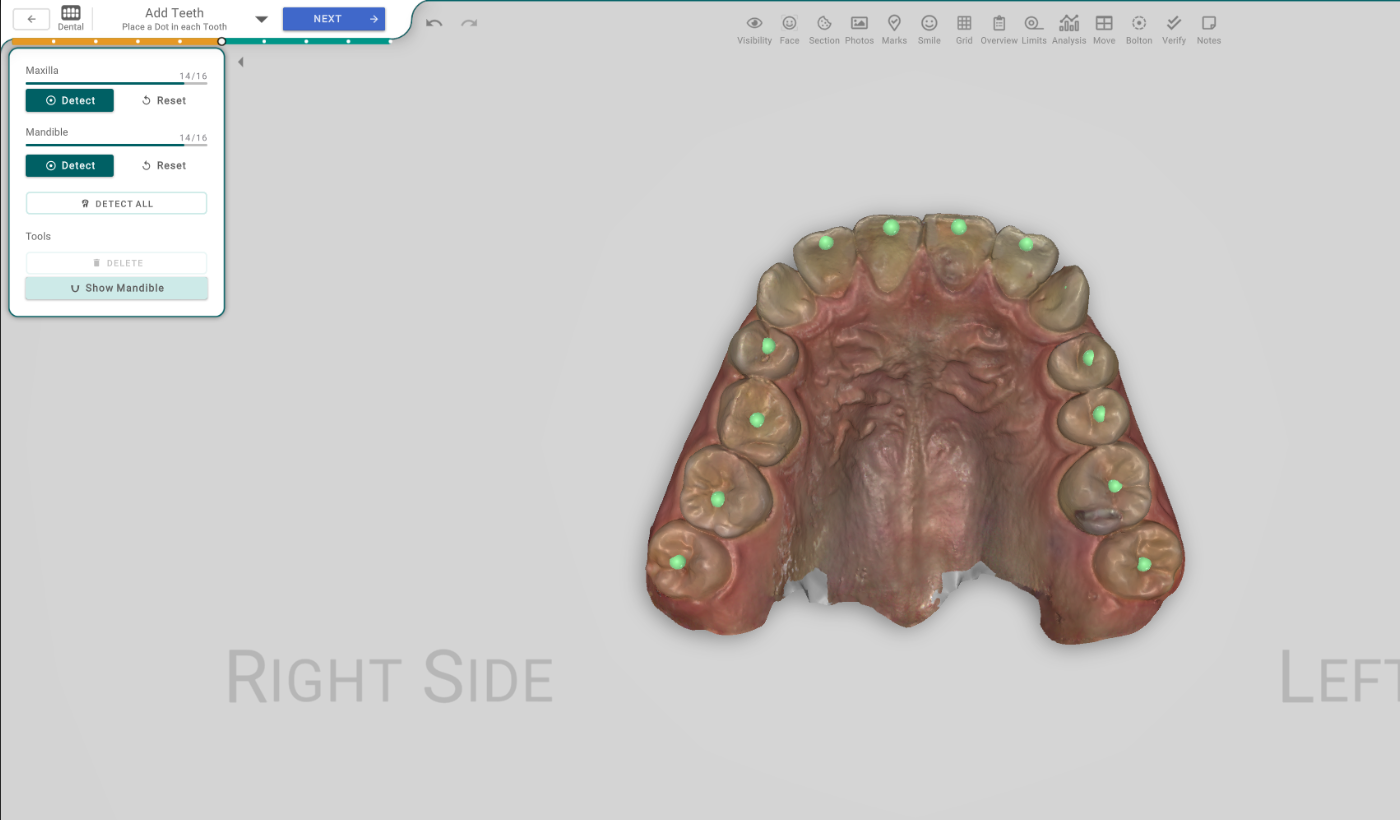
Open it
In the 3D View, the Add Teeth step — its header reads "Place a Dot in each Tooth". The first time an arch has a scan but no teeth, Titan detects them for you.
Each arch
Each arch — Maxilla (upper) and Mandible (lower) — has:
- A count out of 16, with a bar, so you can see how many teeth are placed.
- Detect — runs AI tooth detection on that arch and drops a point on each crown.
- Reset — re-detects that arch from scratch (it asks to confirm first).
Detect All
Detect All runs the detection on both arches at once.
Tools
- Delete — removes the selected tooth. It also works with the Delete key. It's available only when a tooth is selected.
- Show Mandible / Show Maxilla — reveals the arch that's currently hidden, so you can work on it.
By hand
You can also click a crown to place a point yourself, and drag a point to move it. Selection is limited to teeth, so you won't grab the gum by accident.
To move on, each arch needs its teeth placed. If one is empty, Titan asks you to add them — or choose Continue without teeth when a scan is meant to be toothless.