Align in Face
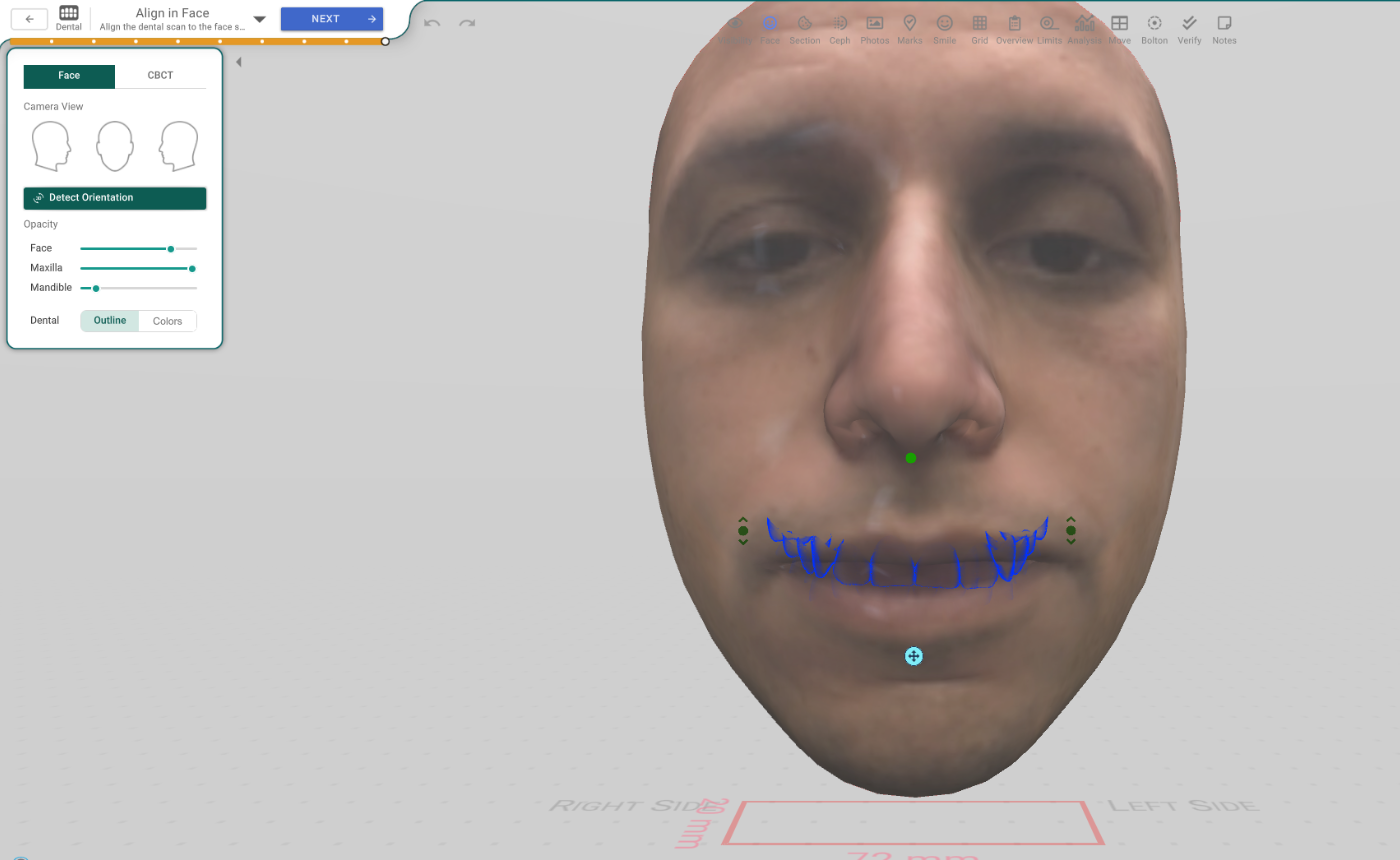
This step places the dental scan inside the patient's face scan (or a CT scan), so the teeth sit exactly where they really are in the face. It's what lets the face analysis and the smile design work with the real tooth position.
Open it
In the 3D View, the Align in Face step — its header reads "Align the dental scan to the face scan", right after Teeth Root. You need a face scan (or a CT scan) for the patient; without one, Titan shows "There is no face".
Choose the target
Two tabs at the top pick what you align to:
- Face — the patient's face scan.
- CBCT — a CT scan.
The dropdown below the tabs chooses which face or CT scan to use.
Place the scan
- Detect Orientation — places the dental scan inside the face automatically.
- Nudge it by hand with the on-screen widget, and use the Camera View buttons to look at the face from the front and the sides.
- On the CBCT tab, Reset puts the placement back to the detected one.
See the teeth in the face
- Opacity — the Face, Maxilla and Mandible sliders set how strongly each is drawn, so you can fade the face to see the teeth underneath. These only change the view, not the scan.
- Dental: Outline / Colors — draw the dental scan as a simple outline or in full colour.