Scan cards
The Dental Scan, Face Scan and CT Scan cards sit on the patient's dashboard, in the treatment timeline. Each one is a scan brought into the case. You click a card to open or select that scan, and its ⋮ menu lets you set its date or delete it.
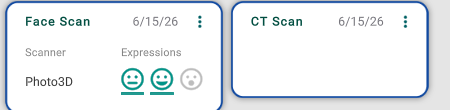
The three scan cards
- Dental Scan — the scan a treatment plan is built on. Click it to open it in the 3D view. Its ⋮ menu has Set Date, Set Series and Delete.
- Face Scan — a 3D face scan (used for facial analysis). The card appears once the scan has a captured expression (Neutral, Smiling or Wide-open). Its ⋮ menu has Set Date and Delete.
- CT Scan — a CBCT scan. Its ⋮ menu has Set Date and Delete.
Bring in a scan
To add a scan, use the dashboard's + button → Import → Dental Scan, Face Scan or CT Scan. The import opens the 3D view, where you bring the scan in and work on it.
Tips
- A treatment plan is built on the dental scan, so deleting a dental scan also deletes the treatments that depend on it.
- There's no Face or CT Scan card until one is imported — and a face scan needs at least one captured expression to show.
- Set Date and Delete need permission to modify the patient's files. If nothing happens when you click them, ask your office manager for that permission.