Orientation
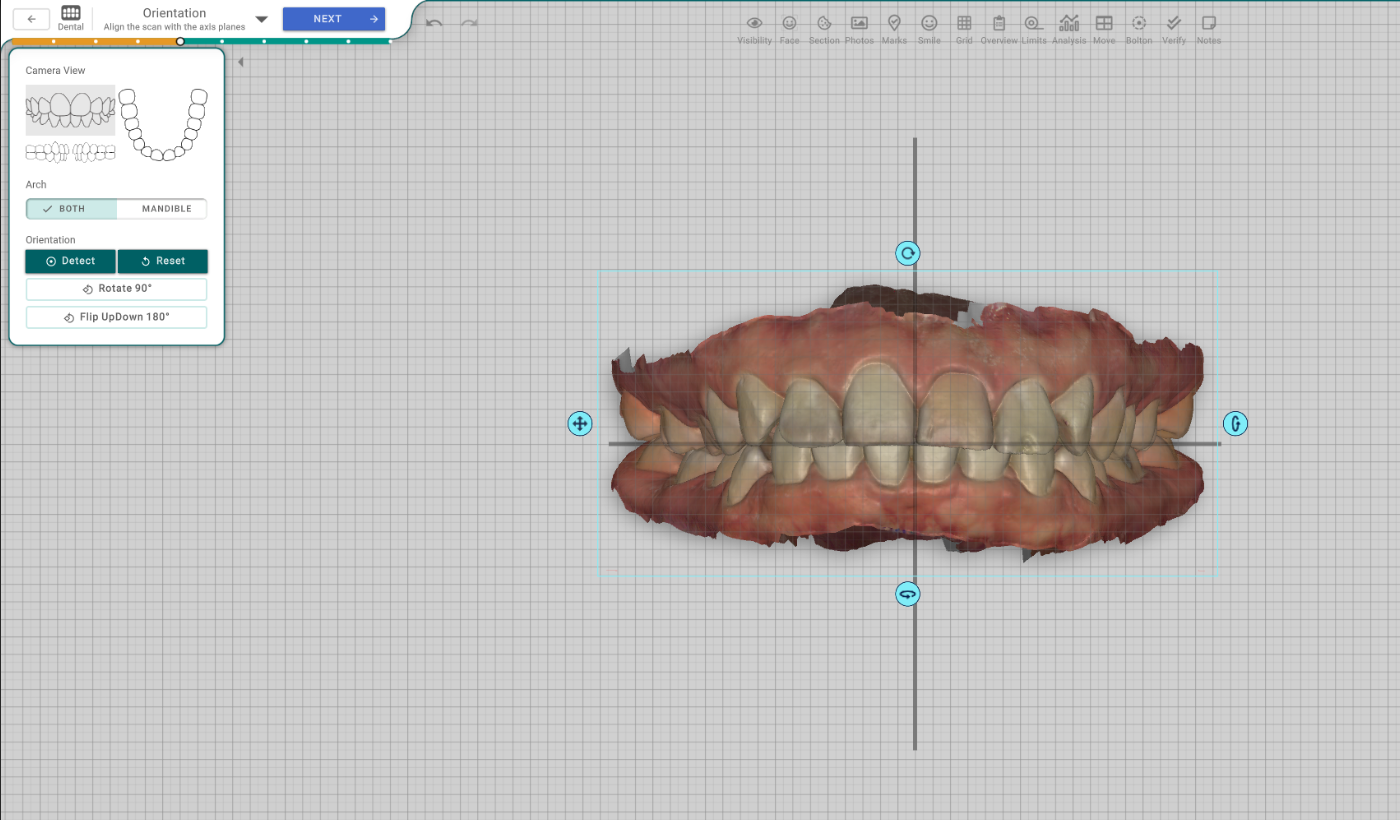
This step squares the scan to the axis planes, so the model sits upright — level on the bite and centred on the midline. Titan can orient it automatically, and you can fine-tune it by hand with the on-screen gizmo and the buttons.
Open it
In the 3D View, the Dental Scan → Orientation step, right after Load Models. It opens a straight-on view with a move/rotate handle around the model.
Camera View
Frame the model while you work:
- Front, Left, Right — the three head-on views.
- Top — the view from above; click it again for the bottom.
Arch
Choose what Detect and the gizmo act on:
- BOTH — orient the upper and lower arches together.
- MANDIBLE — orient the lower arch on its own (useful when only it is out of place). In this mode Titan uses its geometry pass only.
Orientation
- Detect — orients the scan automatically. Titan fits the bite plane (which way is up) and the arch's line of symmetry (the midline), then fine-tunes with an AI pass. If the scan can't be read, nothing changes and you orient it by hand.
- Reset — clears a manual nudge. It does not re-run Detect.
- Rotate 90° — turns the model a quarter-turn about the vertical axis.
- Flip UpDown 180° — flips the model over.
You can also drag the gizmo around the model to move and rotate it directly. Whatever you set — by Detect or by hand — is saved into the model when you leave the step.