Doctor Profile
The Profile tab holds your own account details and the offices you belong to. Keep your name and contact information up to date here, and use it to reach each office's settings or to add a new office.
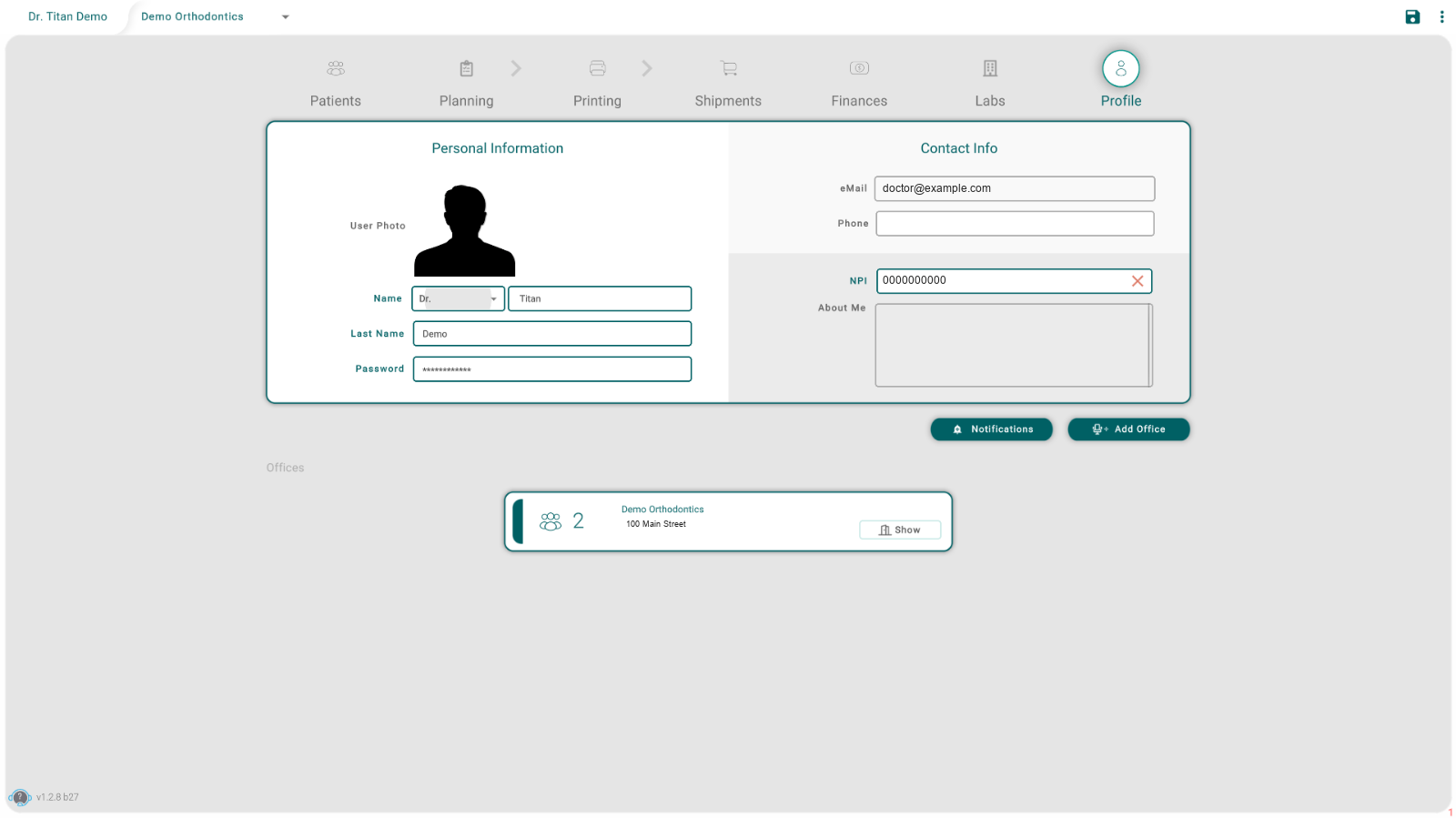
Your details
- Personal Information: your photo, title (for example Dr.), name, last name, and password.
- Contact Info: your email, phone, NPI (National Provider Identifier), and a short About Me.
Your name and title appear across Titan, for example at the top of the dashboard.
If your name is still empty, Titan opens this tab when you log in, with a New User window where you enter your title, name, and last name.
Change your password
- Click the Password field.
- Type your old password, then the new one twice. It needs more than 5 characters, with at least 1 uppercase letter, 1 lowercase letter, and 1 number.
- Click Change.
Don't remember your old password? Choose I have a code: Titan emails you a verification code to type with the new password. Accounts that sign in with Google can use Reset With Google instead.
Change your email
Click the eMail field under Contact Info. A window opens where you enter the new address.
Save your profile
When you change your details, the save icon at the top right lights up. Click it to save the changes.
Your offices
Each office you belong to has a card under Offices. The card shows the office name, its address, and the number of patients in that office.
- Click Show on a card to see and manage that office. See Office Management.
- Click Add Office to register a new office.
- Click Notifications to open your notification settings.
Tips
- Leaving the tab asks "Profile has been changed. Do you want save all changes?" and you didn't change anything? Choose NO to leave everything as it was.
- An office is missing from your cards? You aren't a member yet. Ask its manager to invite you.