Treatment card
The Treatment card sits on the patient's dashboard, in the treatment timeline on the right. It shows a treatment's progress and print status, opens the treatment in the 3D view when you click it, and its ⋮ menu has everything you do with a treatment.
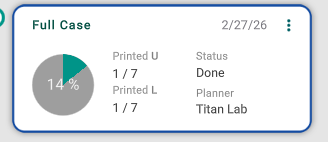
What the card shows
- The treatment's name and date.
- A progress ring.
- Printed U and Printed L — how many Upper and Lower aligners have been printed.
- The Status (for example Done or Creating Plan) and the Planner.
A card marked [Obsolete] means a newer treatment exists and this one was never printed.
Open and work on a treatment
Click the card to open the treatment in the 3D view. A treatment tied to a submitted plan opens read-only.
The ⋮ menu
Open the ⋮ menu on the card for its actions:
- Schedule Print — order a print of this treatment (see Create a print order).
- Export Stl — just get the files, without ordering (see Export STL).
- Print Overview — print a treatment letter (a document). It does not open the print order.
- Share — let other users review and comment. Titan turns the treatment into a planning first (local treatments can't be commented on), so you'll be asked to confirm.
- Duplicate — make a copy named "Copy - …".
- Set Series — choose the aligner series.
- Set Date — set the card's date.
- Delete — remove the treatment.
Tips
- Set Series, Set Date and Delete need permission to modify the treatment. If nothing happens when you click them, ask your office manager for that permission.
- Print Overview prints a letter, not the print order — to follow an order use the Printing queue.