Root Awareness
Root awareness shows the roots of the teeth while you plan, so you move each tooth with its whole body in mind — not just the crown — and can see when roots run into each other. In Titan, it's a tool on the toolbar at the top of the viewer, used in the treatment phases.
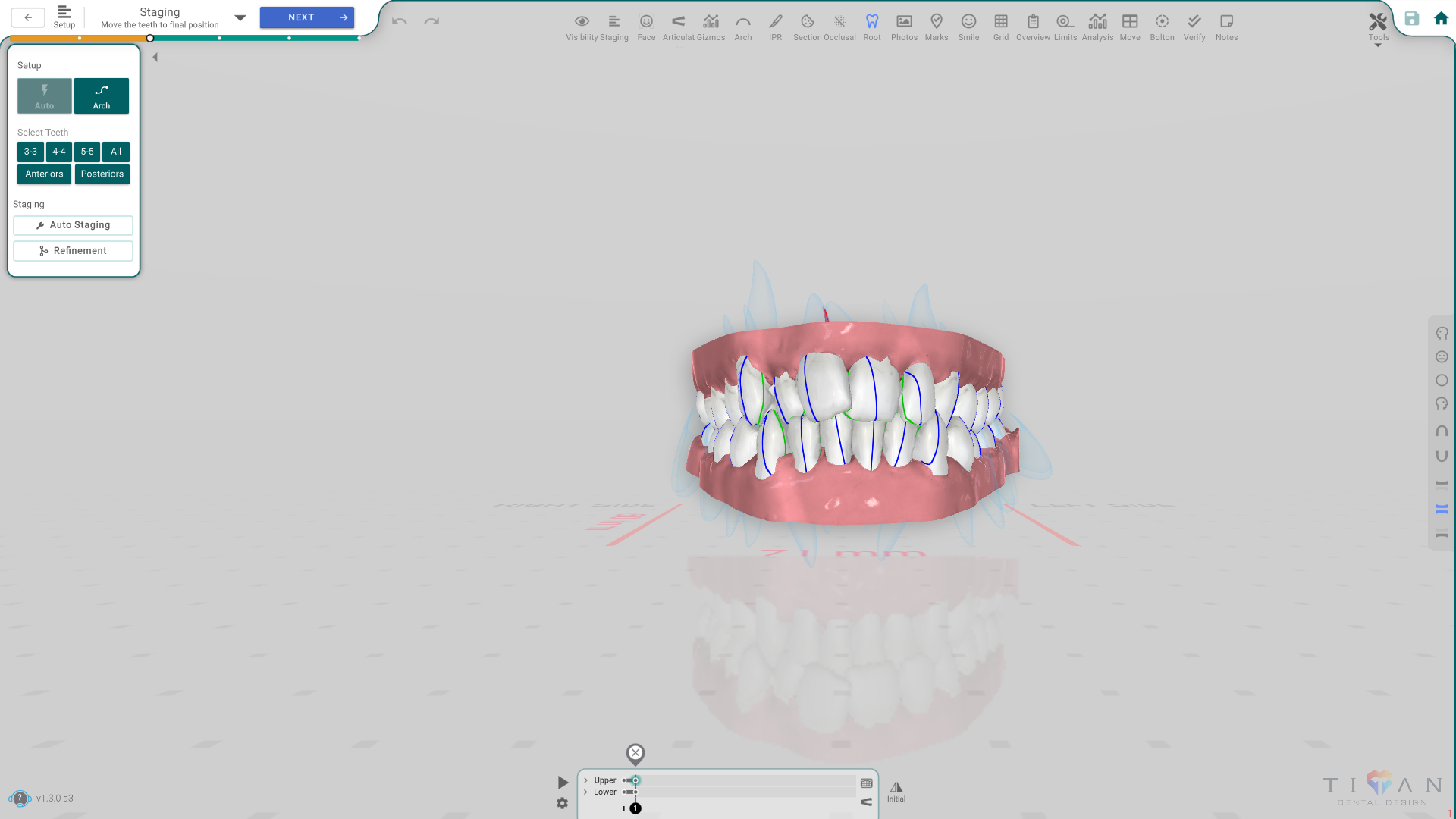
Open it
In the 3D View, in the Setup or Staging phase, press the Root button on the top toolbar. The roots become solid so you can see them under the gum. Press the button again to hide them.
Watch for root collisions
When two roots run into each other, the overlapping part turns red. That's your cue to ease a movement off, so the roots stay apart as the teeth move. Root collision is on by default.
See more detail
Inside the tool are a few extra layers you can turn on:
- Teeth axis shows each tooth's long axis as you move it (on by default).
- Gum heatmap colours the gum by how much it moves.
- Teeth heatmap colours the teeth by movement or rotation, so big changes stand out.
- Force preview shows the force-preview overlay.
Good to know
- Turning Root on makes the roots solid; turning it off restores the normal view.
- This is the treatment-phase root overlay — different from the Roots step in the dental phases, where root length and axes are set.
- The Root tool is an overlay: turning it on doesn't close the phase's panel, so you can keep working while you check the roots.