Clinical Report
The Clinical Report is the diagnostic report built into the Diagnosis step. It gathers the case's findings into four areas you can read tab by tab — Summary, Facial, Skeletal and Dental — together with the ABO Discrepancy Index, and it exports the whole thing to an HTML/PDF document you can share or print. The report is read-only: it shows the diagnosis, it doesn't edit it. The on-screen report and the exported document come from the same snapshot, so what you print is exactly what you saw.
Open it
In the Diagnosis step, select one of the report tabs at the top of the popup — Summary, Facial, Skeletal or Dental. The report opens inside the Diagnosis popup. (The Problems and ABO tabs and the EDIT form are the findings side of the same popup — see Diagnosis.)
If the scan has no report yet, the panel shows Generate report. Generating builds the report from the current findings; if the case has unsaved changes, Titan saves it first.
Summary
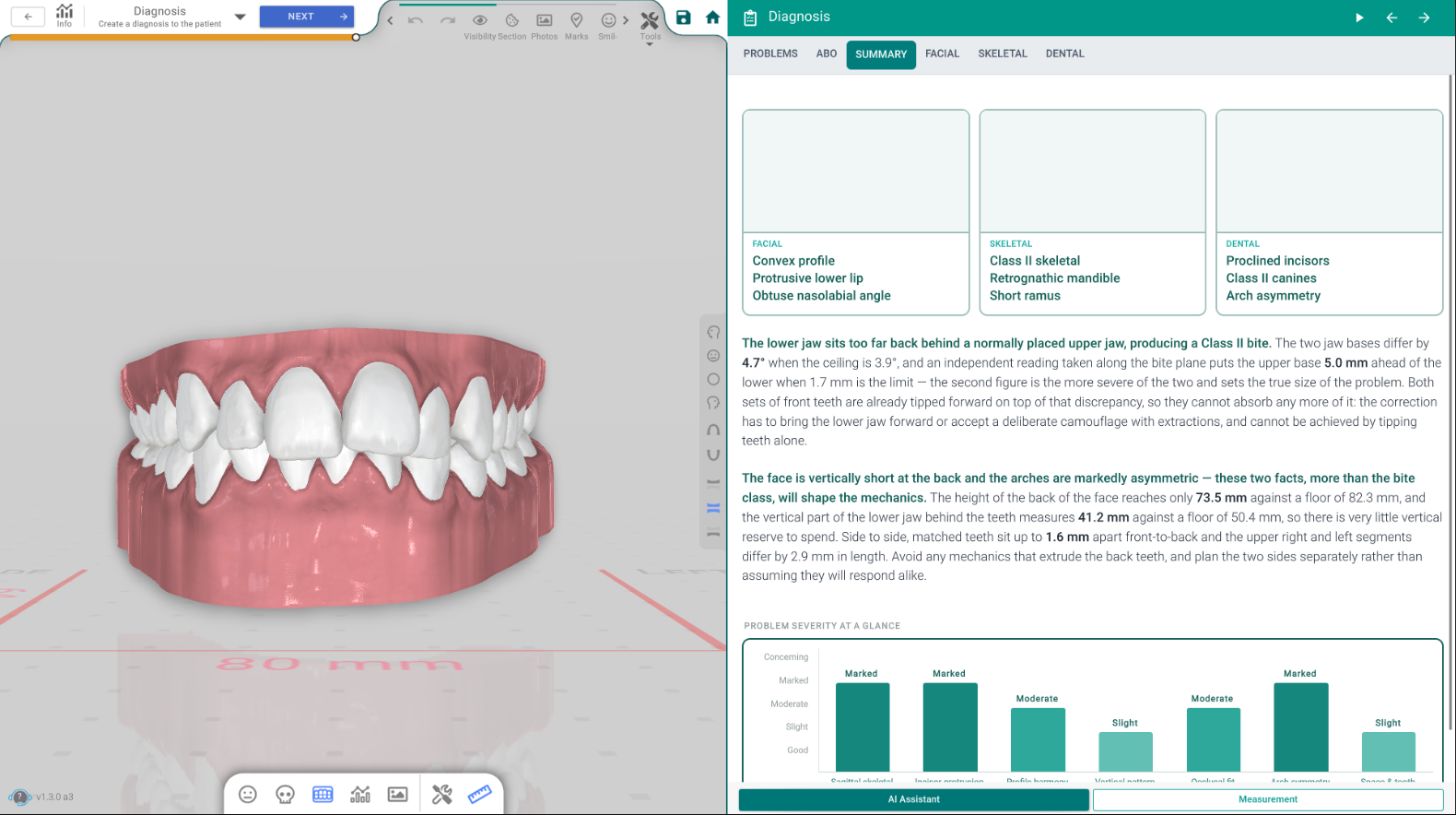
The overview tab. It shows the patient record — which records and photos are available for the case — and a case overview with summary cards and a severity chart that sum up the diagnosis at a glance.
Facial
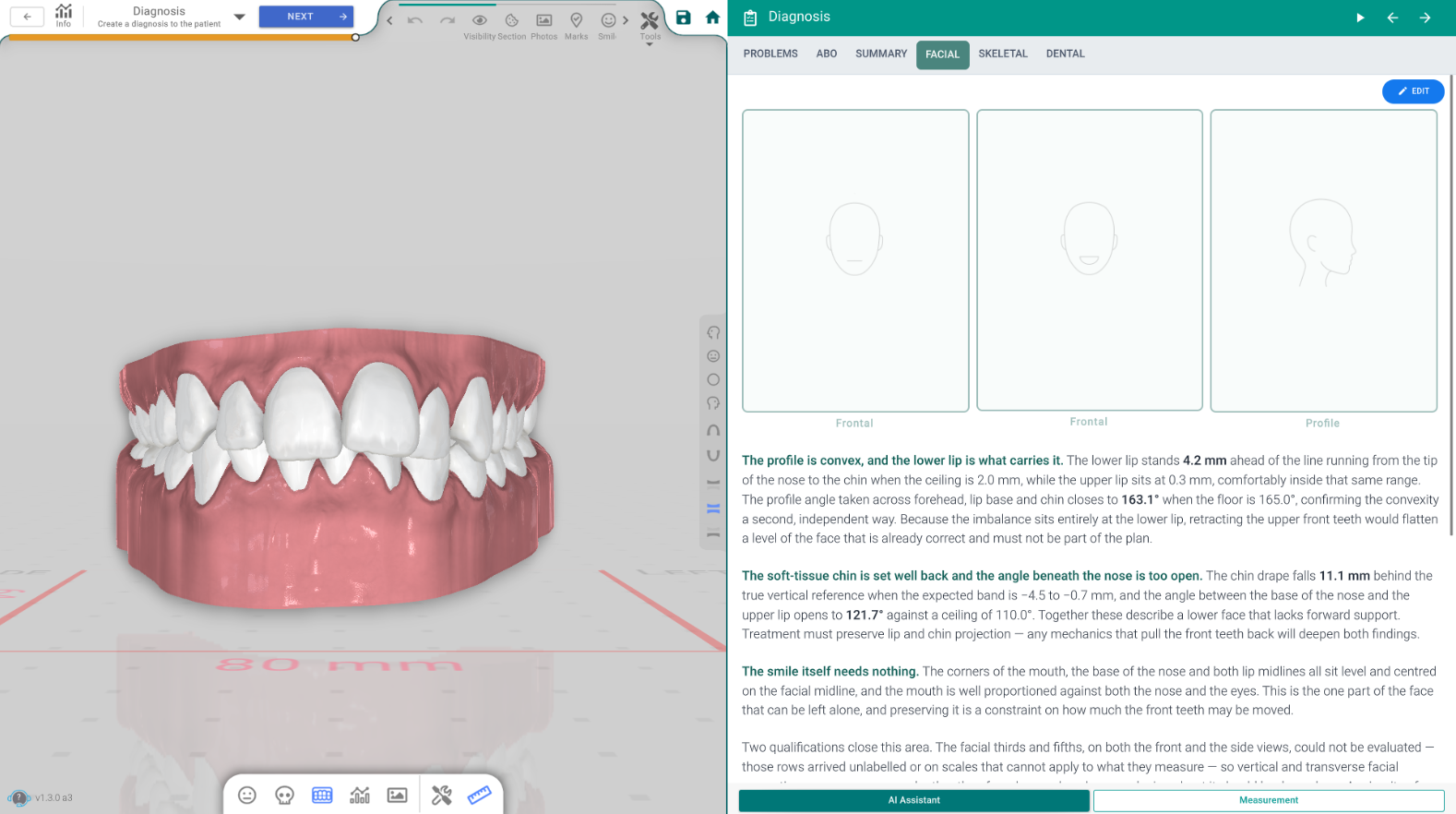
The facial analysis: a written summary, a table of the facial measurements, and the patient's facial photos.
Skeletal
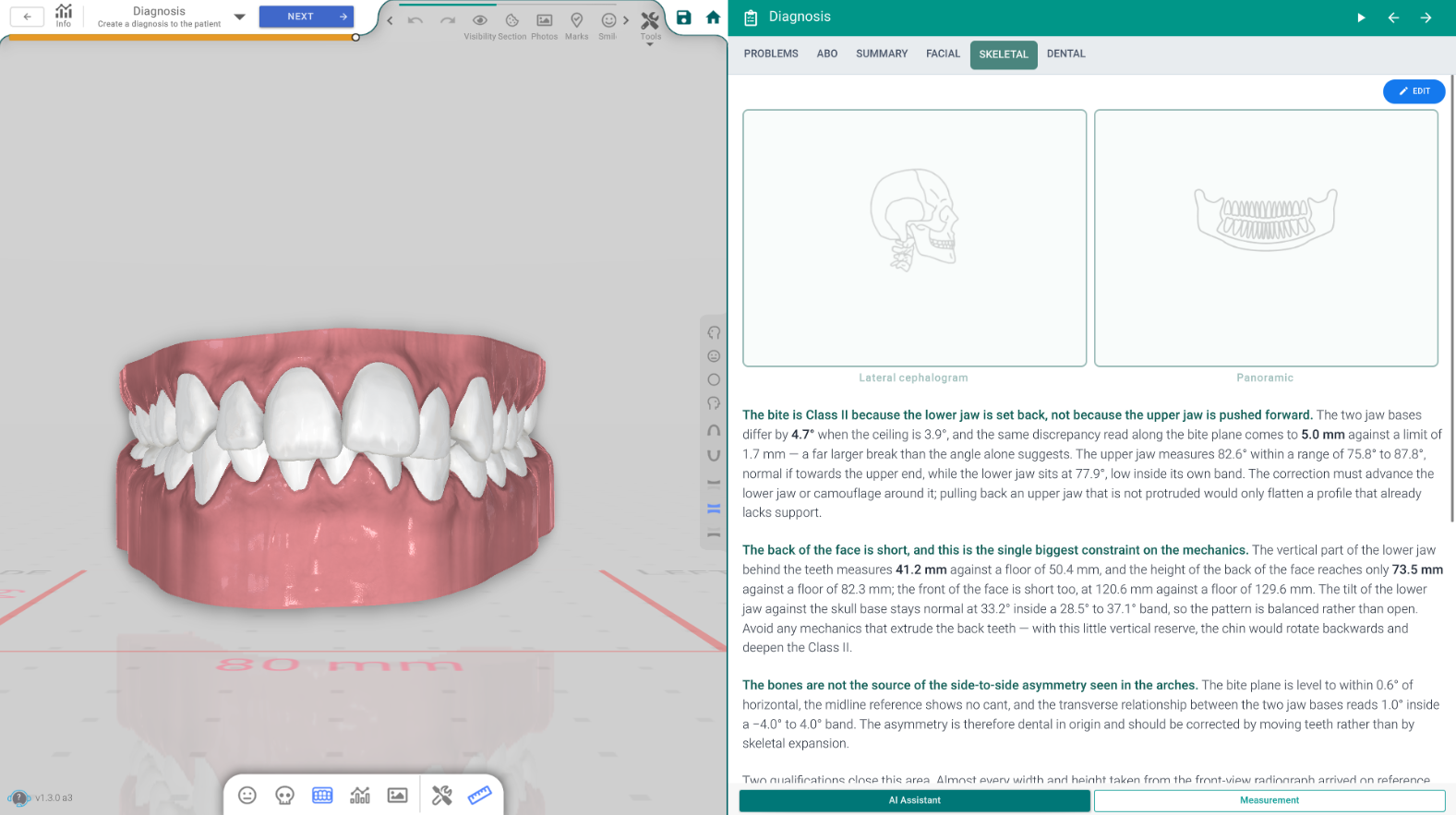
The skeletal analysis: a written summary, a table of the skeletal (cephalometric) measurements, and the matching records.
Dental
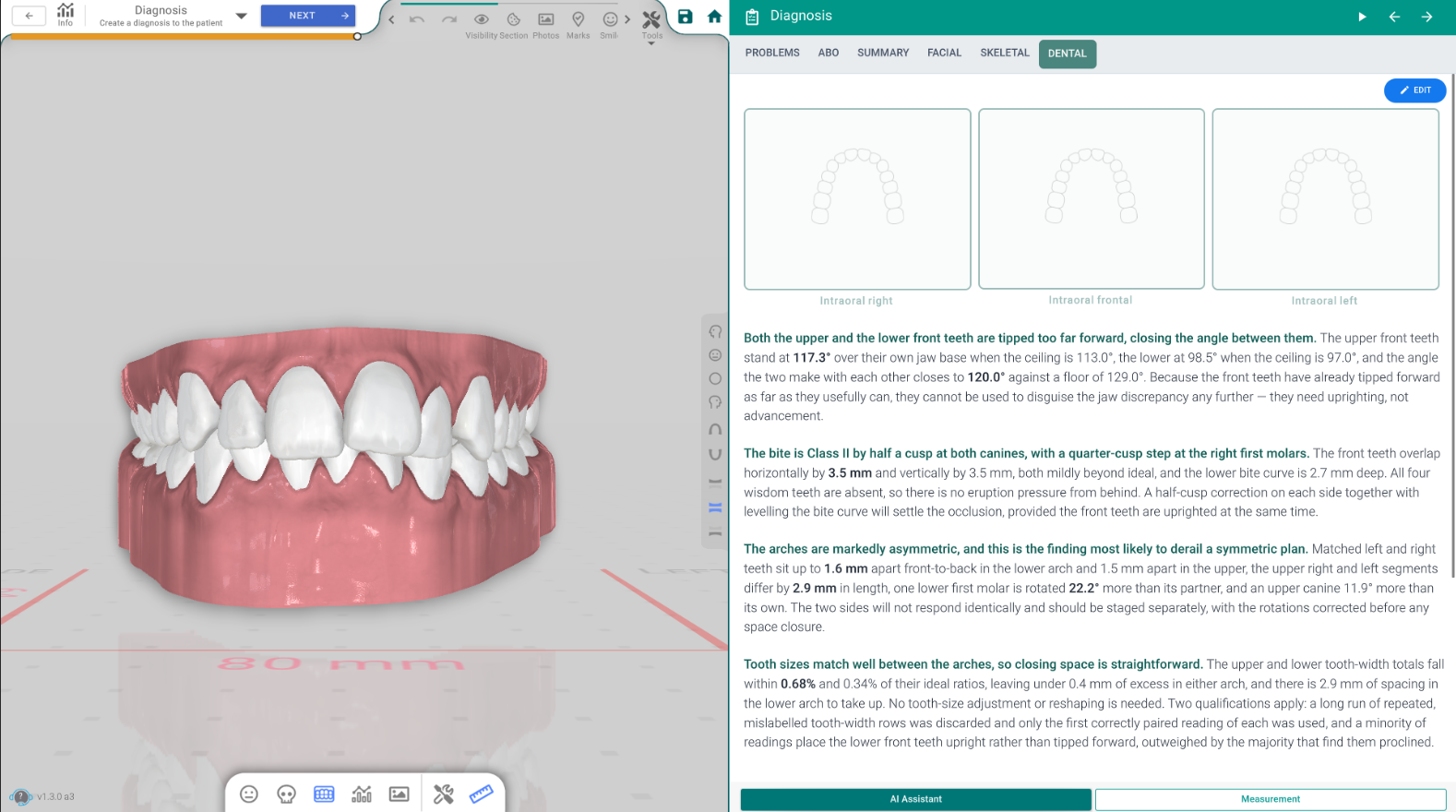
The dental analysis: a written summary, a table of the dental measurements, and the dental records.
ABO Discrepancy Index
Inside the report, the ABO section presents the ABO Discrepancy Index — its score table, meter and summary — so the case's complexity reads alongside the rest of the diagnosis.
The written analysis
The summaries in each area are an AI-written analysis of the findings. If it can't be prepared, the report keeps a short, plain summary of the findings instead and offers Regenerate so you can try again for the full text. The tables and the ABO score are always calculated directly from the findings.
Print / export
Use the Print button in the Diagnosis popup to export the report to an HTML/PDF document that opens in your browser, ready to save or print. The button appears on a report tab once a report is generated; it's hidden on Problems/ABO and while the report is still loading. The exported document is the same snapshot you see on screen.
Good to know
- The report is read-only. To change what it says, edit the findings in the EDIT form (see Diagnosis), then regenerate the report.
- If the dental scan or other records change after the report was built, Titan marks it out of date — regenerate it from the current case.