Connections & Sharing
The Connections & Sharing group of Settings controls what people see through a shared planning link, how your office appears to labs, and the connections to scanners, printers and notifications.
Open it from the account menu: ⋮ → Settings, then Connections & Sharing in the left navigation.
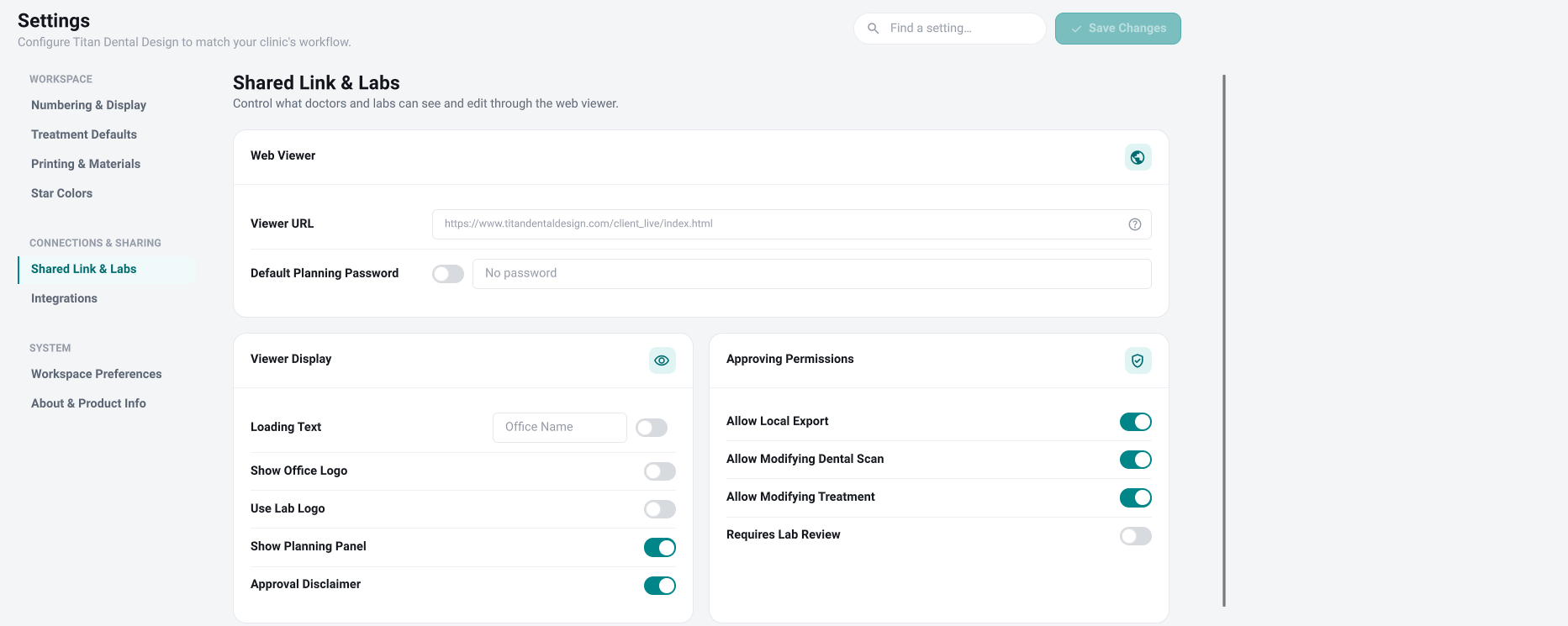
Shared Link & Labs
- Web Viewer: the address of the online viewer a shared link opens.
- Default Planning Password: an optional password a recipient must type to open a shared plan. Type a value to set one; turn the switch off to remove it.
- Viewer Display: the loading text, whether the office or lab logo shows, whether the planning panel is visible, and whether an approval disclaimer is shown.
- Approving Permissions: what a recipient may do — export locally, modify the dental scan, modify the treatment — and whether a lab must review the doctor's changes.
- Print Orders: whether a recipient may choose ranges, batch, add extra options, or leave a print note.
- Labs White Labeling: an optional auto-redirect to one of your offices or a remote lab, and whether the lab is told when the doctor orders and the doctor is told when the lab finishes.
Integrations
- Notifications (Webhook): a URL Titan calls when a treatment's status changes. It must be a full
http://orhttps://address. - LUXCREO: generate and copy the authentication token for the LUXCREO 3D printing connection.
- iTero: the username and password for the iTero scanner connection.
- 3Dconnexion Space Mouse: turn the Space Mouse on at start-up when working in the web viewer.
Saving
Changes are kept when you click Save Changes at the top, or when you close the window. Save Changes is greyed out until you change something. The shared-link and labs settings apply to your whole office; the iTero and Space Mouse settings apply only to you.