Printing Queue
The Printing tab shows your office's print orders: the aligners and models in the queue, in production, in transit, delivered, or with an error, whether they're printed at your office or at a remote lab. Use it to follow each order until it arrives.
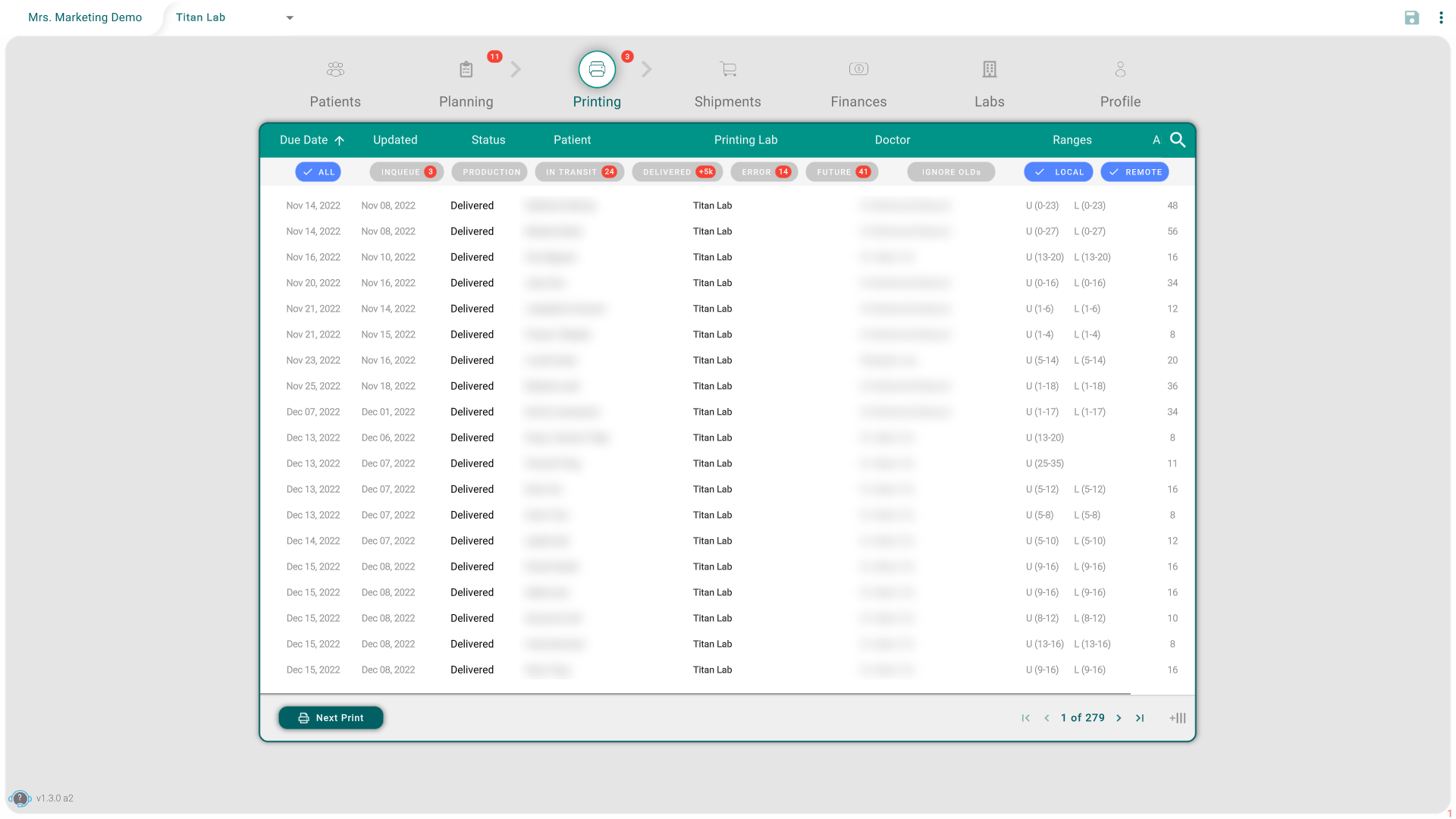
What the table shows
Each row is a print order, with its Due Date, when it was last Updated, its Status, Patient, Printing Lab, Doctor, the aligner Ranges for each arch, and the number of Aligners.
- Click a row to open that order.
- Click Due Date to sort the orders by the date each one is due. Click it again to reverse the order.
Filter the orders
The colored buttons above the table filter the orders. The list updates right away.
- By state, one at a time: ALL, INQUEUE (waiting to print), PRODUCTION, IN TRANSIT, DELIVERED, or ERROR. Clicking one replaces the one selected; ALL shows every state.
- By place: LOCAL for orders printed at your office, and REMOTE for orders printed at a remote lab. Each one turns on and off by itself.
- FUTURE: turn it on to include the orders that aren't for now, scheduled for later.
- IGNORE OLDs: turn it on to see only the orders of the last 30 days.
Go to the next orders to print
Click Next Print. The table switches to the orders waiting in the queue, so you can see what's up next.
Tips
- An order seems to be missing? Click ALL, make sure LOCAL and REMOTE are on, and turn IGNORE OLDs off.
- You only see queued orders? That's what Next Print does. Click ALL to see everything.
- The list belongs to the office shown at the top. Switch office to see another office's orders.
- Older tutorials show Calendar, Operations, and Workers tabs here. They were removed in later versions.