Diagnosis
The Diagnosis step is where Titan brings the case's diagnostic findings together so you can review and correct them before planning treatment. It opens a dockable popup with a row of tabs. The first two — Problems and ABO — are short readouts of the findings. The other four — Summary, Facial, Skeletal and Dental — are the clinical report. An EDIT button opens a form where you adjust the findings yourself.
Open it
In the 3D View, choose the Analysis / Diagnosis step. The Diagnosis popup opens docked to the side of the viewport. You can drag it to either side, minimize it, or drag its edge to resize it, and the arches stay framed in the viewport behind it.
Problems
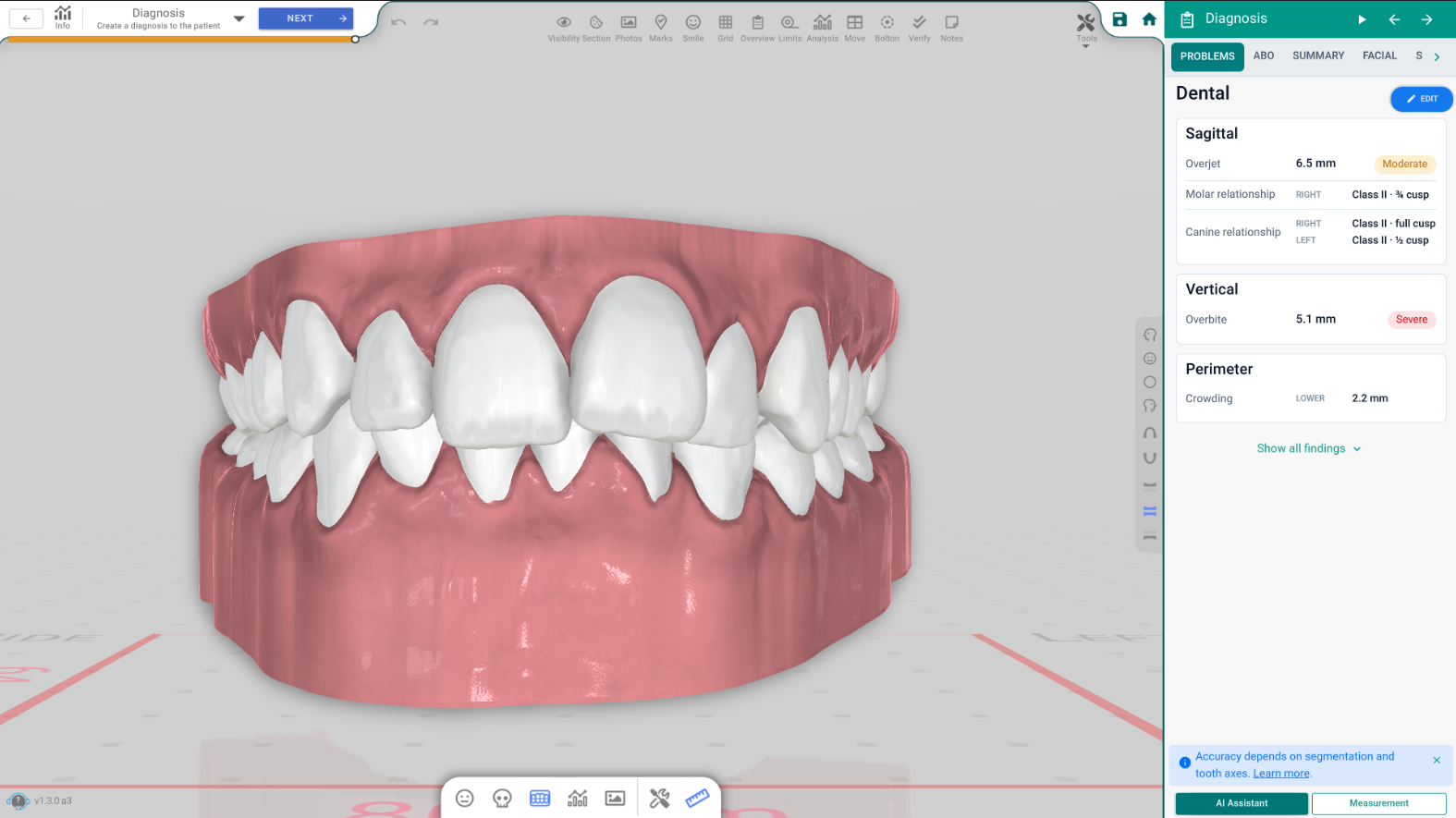
The Problems tab lists the case's problems — the patient's chief complaints and the general findings — grouped by area. Each row names the finding and its value. Use Show all findings to see every finding, not only the ones flagged as problems, and Show only problems to go back.
If the case changed after the findings were last computed, a banner tells you they are out of date and offers Generate; press it to recompute Problems (and ABO) from the current scan.
ABO
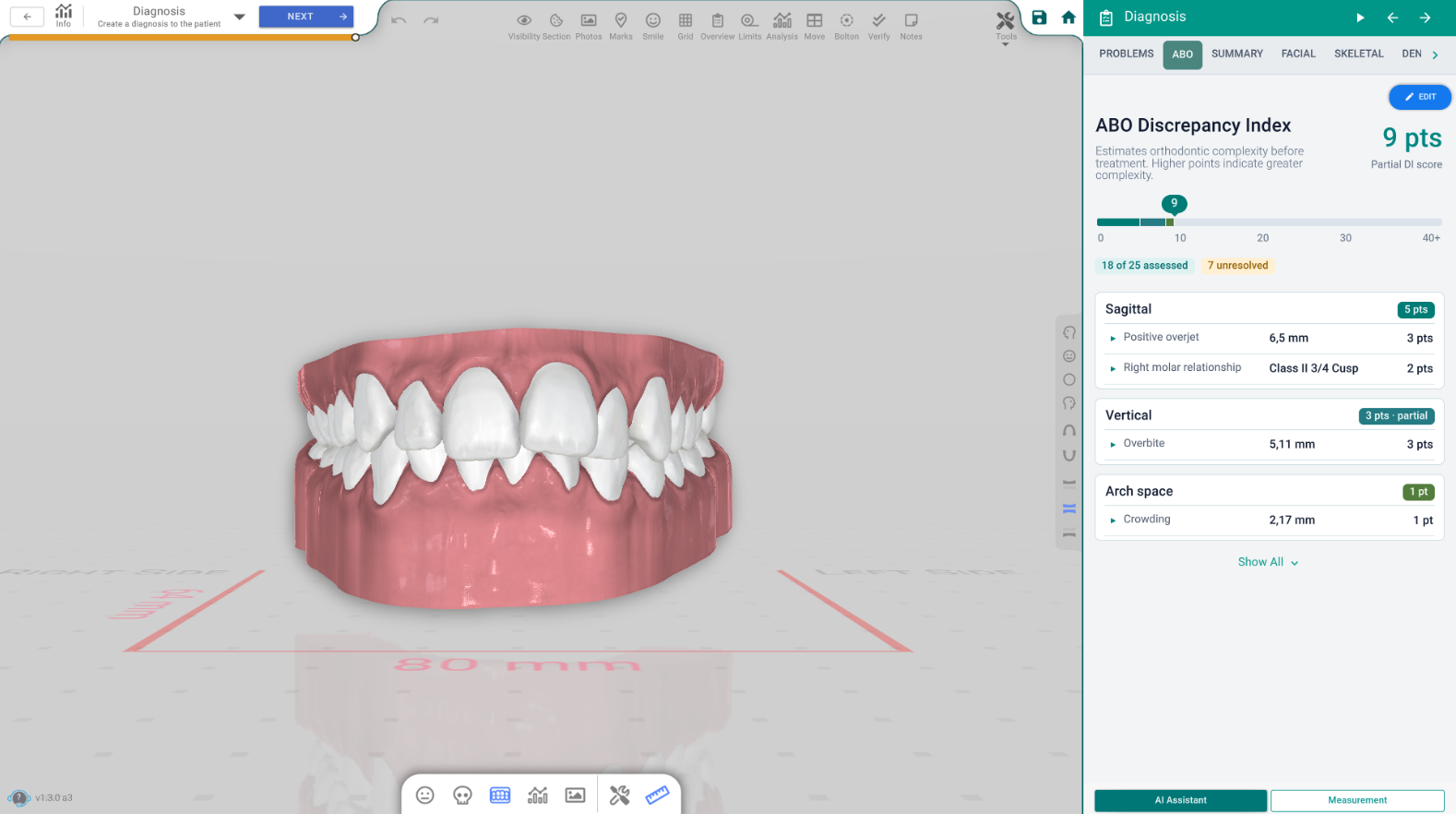
The ABO tab shows the ABO Discrepancy Index — the American Board of Orthodontics estimate of how complex the case is before treatment. Higher points mean greater complexity. It is calculated from the same saved findings as Problems, so the Generate banner keeps it current too.
Editing the findings
Press EDIT to open the findings form. This is where you review each finding and correct it — confirm or change a value, mark something as not present, or exclude it. Switch between Simplified Findings and Advanced Findings to show more or less detail, and use the search box to jump to a finding by name. Your answers are kept and take priority: a later recalculation flags a difference but never overwrites an answer you entered. Press Back to return to the tabs.
Printing / the clinical report
The Summary, Facial, Skeletal and Dental tabs are the patient's clinical report. The Print button (shown while a report tab is open) opens the report in your browser to save or print. The report has its own page — see Clinical Report.
Good to know
- The Measurement button in the footer opens the measurements tools for taking a reading on the model.
- The AI Assistant button offers help without leaving the step.