Identify Teeth
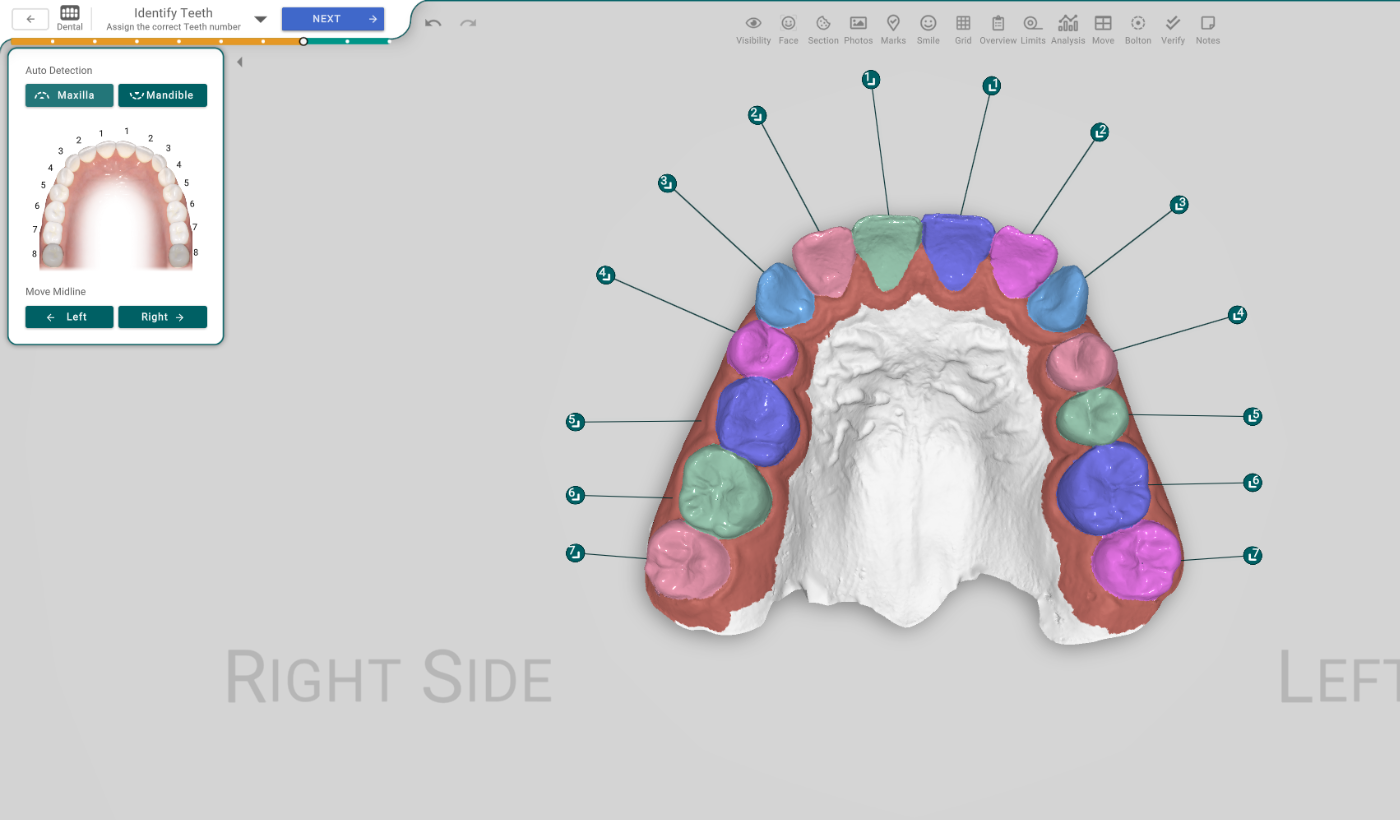
This step names and numbers each tooth. Titan numbers them for you with AI, and you can correct any tooth by hand or shift the whole numbering. Correct numbers matter: everything downstream — the diagnosis, the measurements, the treatment — refers to teeth by their number.
Open it
In the 3D View, the Identify Teeth step — its header reads "Assign the correct Teeth number", right after Segmentation. Titan numbers the teeth as you enter.
Auto Detection
- Maxilla / Mandible — re-run the automatic numbering on that arch (and look at it). Titan uses AI, with a fallback that counts the teeth in order.
The teeth chart
The chart shows the current numbering of the arch, so you can check it at a glance.
Correct a tooth by hand
Select a tooth and set its number. Your choice is pinned, so a later Auto Detection keeps it. (A bulk action like Move Midline can still re-number the arch.)
Move Midline
Left / Right shift the whole numbering one tooth in that direction. A button is greyed out when there's no room to shift that way (for example, when a third molar already sits at the end).
Good to know
Identify follows your dental chart: it won't put a tooth where you've marked one as missing. If an arch has more teeth than the chart allows, Titan asks you to delete a tooth or un-chart a missing slot, then press Detect. Naming the teeth also builds the gum.