Select Dental Scan
The 3D viewer's dental track opens here: you pick which of the patient's dental scans to work on. If the patient has only one scan, Titan selects it for you and goes straight to Load Models — so you'll see this list mainly when there's more than one scan, when you want an older version, or when you're starting a new scan.
Open it
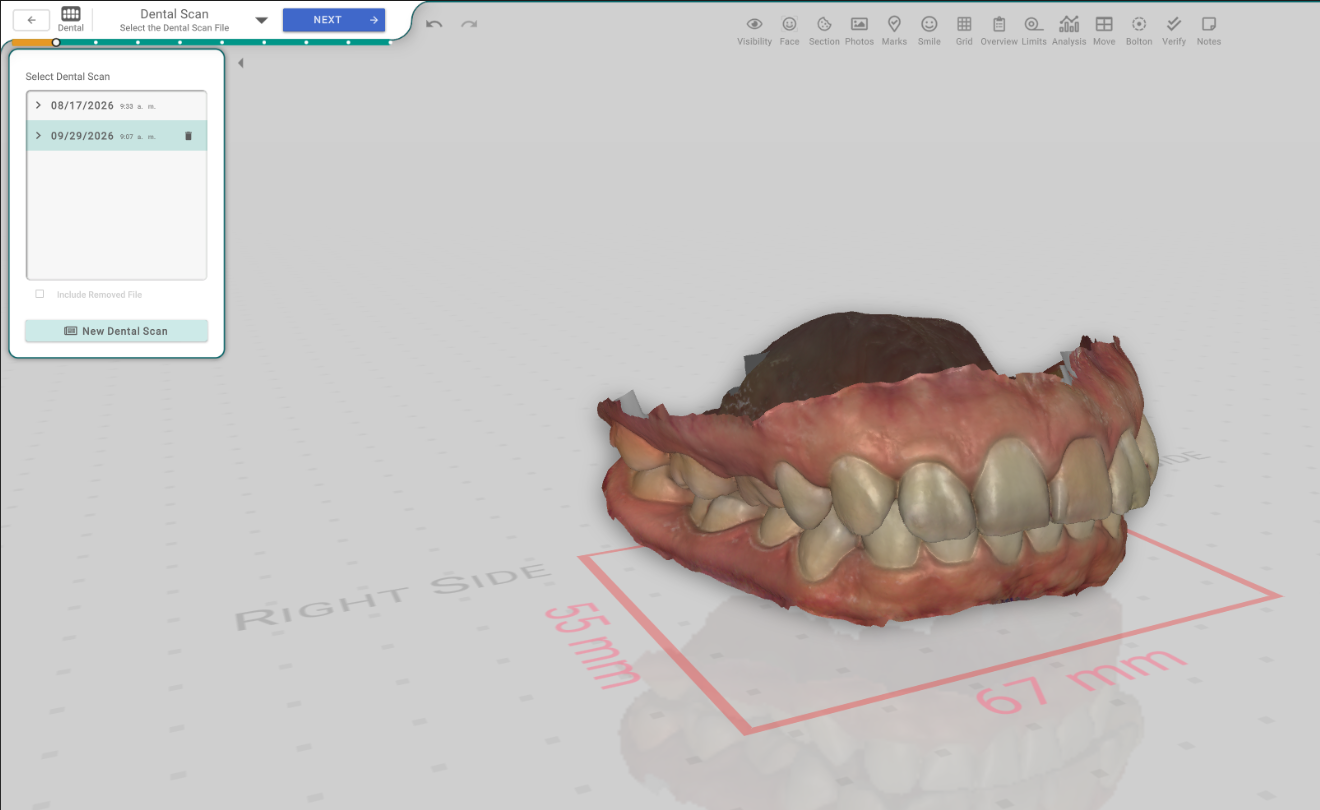
Open a patient's dental scan, or a treatment, in the 3D View. The first step is Dental Scan → Select the Dental Scan File, shown in the panel on the left.
The panel, control by control
- The scan list — the patient's dental scans, each row showing its date and time. Click a row to select that scan.
- The › arrow — opens a scan's saved versions. Each earlier version is listed by date; a mark shows a version that's used in a planning. Click a version to load it.
- The trash icon — deletes the selected scan. Titan asks to confirm first, because it can't be undone.
- Include Removed File — shows the scans you've deleted. Turn it on to find a removed scan and select it again.
- New Dental Scan — creates a new, empty scan and opens it so you can load models into it.
Good to know
- With a single ready scan there's nothing to choose, so Titan selects it and moves on. Go back to this step to see the full list when the patient has more than one scan.
- New Dental Scan and Delete need the right permissions, and they're turned off while the case is locked — for example, once it's been sent for planning.
- If a scan is still downloading, Titan waits for it before the next steps run, so nothing opens against an unfinished scan.