Doctor Dashboard
The Doctor Dashboard is the first screen you see after logging in to Titan. It's your home base: from its tabs you reach your patients, plannings, print orders, shipments, finances, labs, and your own profile. The office name at the top tells you which office's data you're looking at.
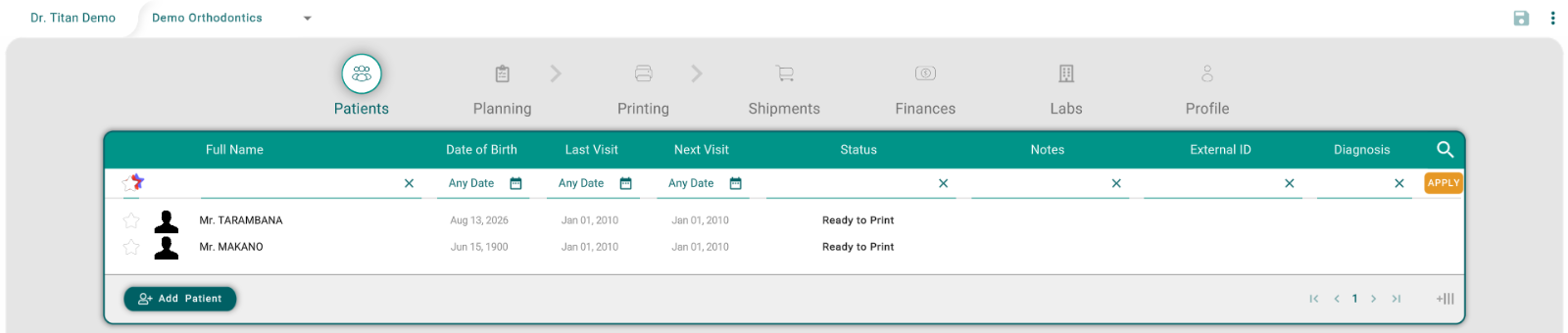
The tabs
The tabs run along the top: Patients › Planning › Printing, then Shipments, Finances, Labs, and Profile. The arrows after Patients and Planning follow the usual workflow: a patient gets a planning, and a planning gets printed.
Titan opens on the Patients tab. Click any tab to switch to it.
Switch office
If you work in more than one office:
- Click the office name at the top of the screen.
- Choose an office from the list.
- The dashboard reloads with that office's patients, orders, and settings.
Create a new office
- Click the office name at the top of the screen.
- Choose Create Office.
- Fill in the office details and save. See Office Management.
Save your changes
The save icon at the top right lights up when something is waiting to be saved: a change to your profile, a change to the status of a print order, or a change left pending in another screen. Click it to save.
Tips
- A tab is missing? Shipments, Finances, and Labs depend on your role, and on how your lab has set up your account. Ask your office manager if you need them.
- The patient list looks wrong? Check the office name at the top. Each office has its own patients.
- Older tutorials look different. Earlier versions of Titan had an Orders tab (now Shipments) and a Calendar tab, which no longer exists.