Create a planning order
The planning order form is where a case becomes a plan you can send out or make yourself. You pick the case type, bring in the records, answer the planning questions, review the instructions, choose where the plan is made, and order it. It's a short stepped form — Records → Prescription → Review → Location → Order — shown next to the 3D view.
Open it from the patient
On the patient's dashboard, under Create a new case for In-House or Lab Order, choose the kind of case: Full Case, Refinement, Active Retainers or Passive Retainers.
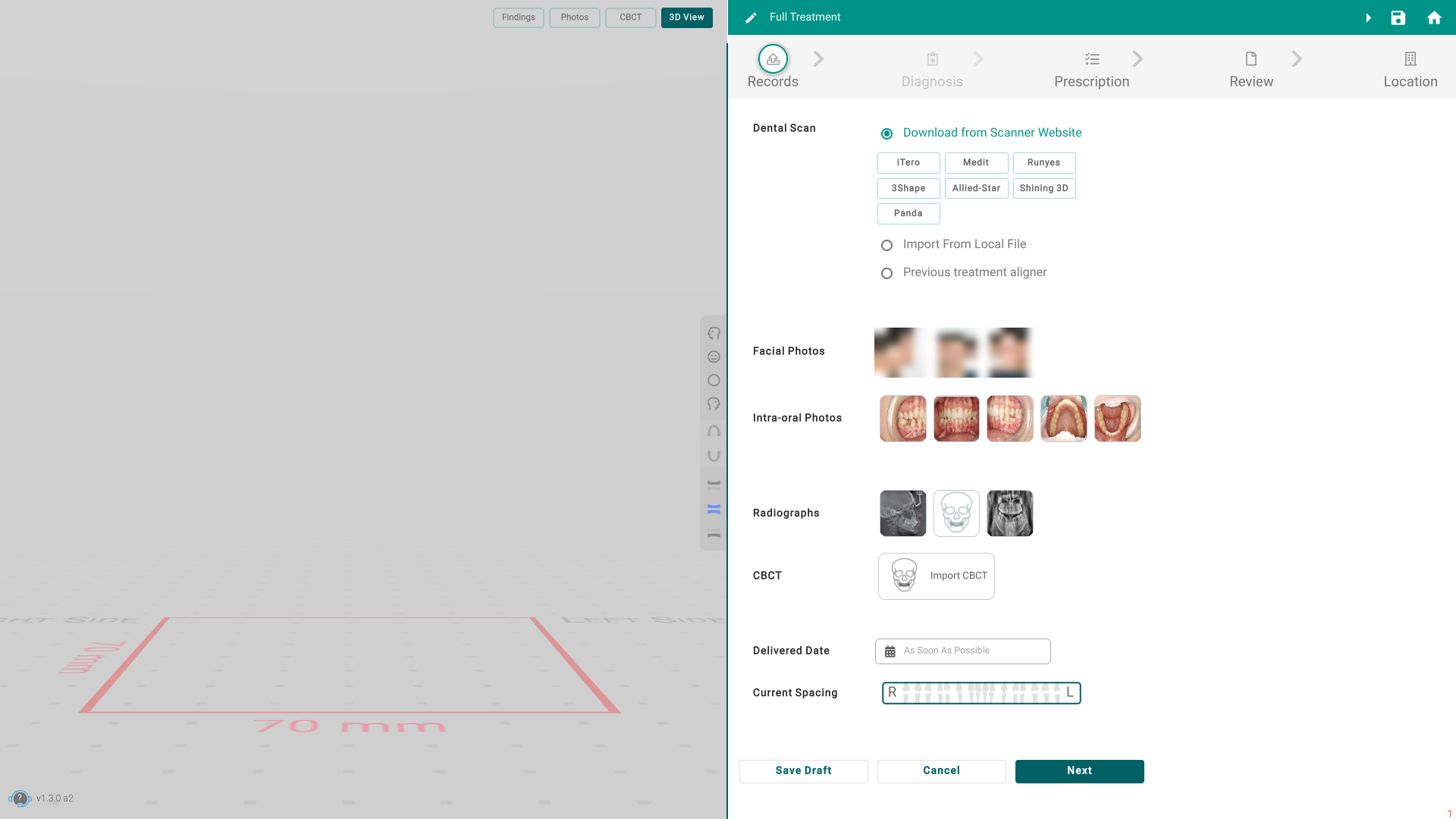
Fill in the order, step by step
- Records — bring in the dental scan (from your scanner's website, a local file, or a previous aligner), the facial and intra-oral photos, the radiographs, and the CBCT if you have one. You can also set a delivery date and the current spacing.
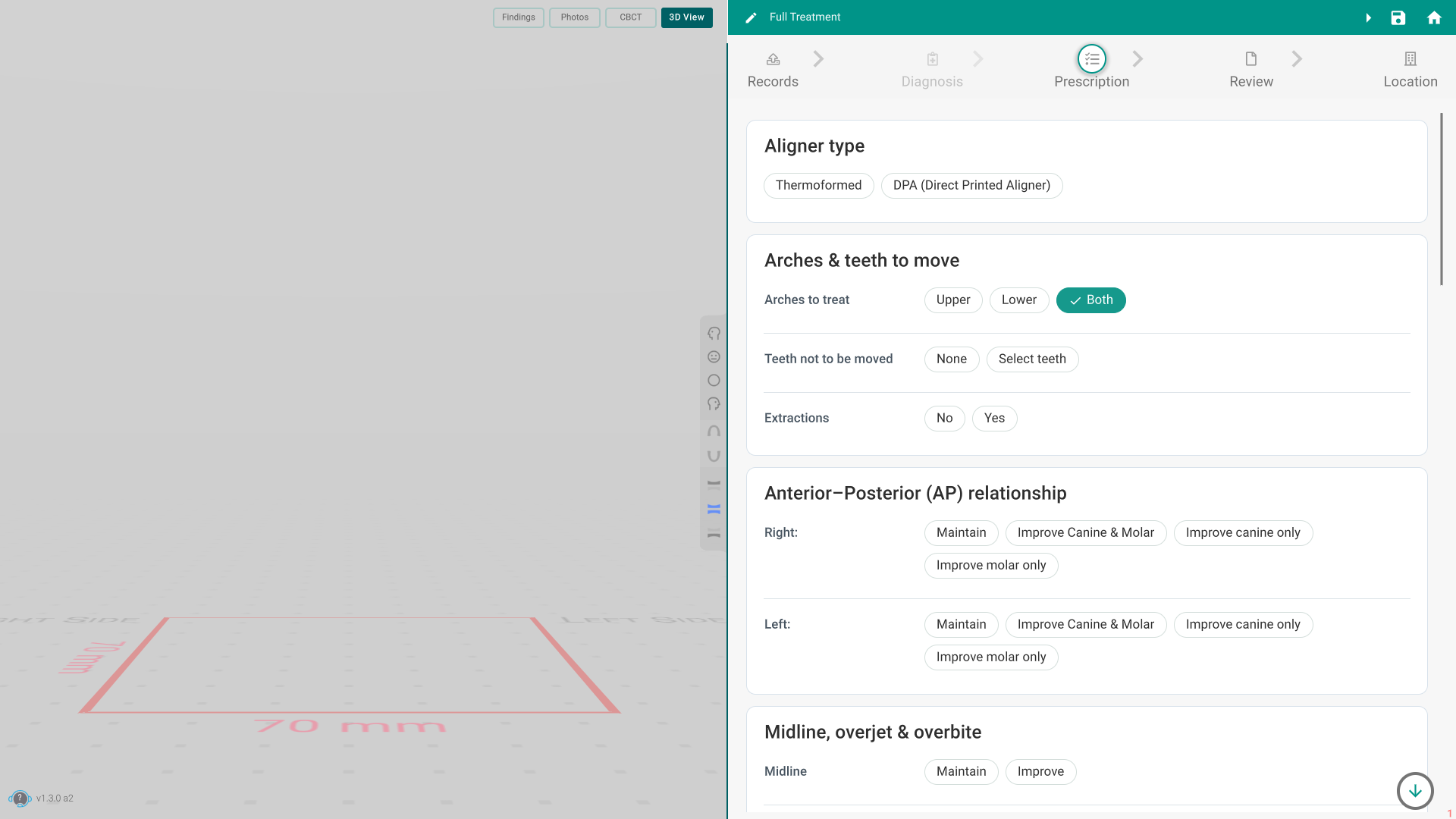
- Prescription — answer the planning questions: the aligner type, which arches and teeth to move, extractions, the bite relationship, the midline, overjet and overbite, and so on.
- Review — check the Original and Reviewed instructions. You can also use Review with AI.
- Location — choose where the plan is made: In-House (your own office), a Lab, or Hybrid (planning in one place, manufacturing in another).
- Order — review the summary and place the order.
Tips
- You can Save Draft at any point. The order isn't sent until you place it on the Order step; a draft shows as DRAFT in the Planning list.
- A step won't open until the earlier ones are complete. If the dental scan, a required answer or a photo is missing, Titan tells you what's needed.
- Passive Retainers don't have a Location step.
- Use Change in the header to switch the case type at any time.
- The tabs on the left of the form — Findings, Photos, CBCT, 3D View — let you look at the case while you fill in the order.