Office Management
The Office Information window is where you manage an office: its name, contact details, address, and logo; the people who work there and their roles; and the notifications the office sends. You also use it to create a new office, or to leave or delete one.
To open it, go to Profile and click Show on the office's card. To create an office, click Add Office on Profile, or Create Office in the office list at the top of the dashboard.
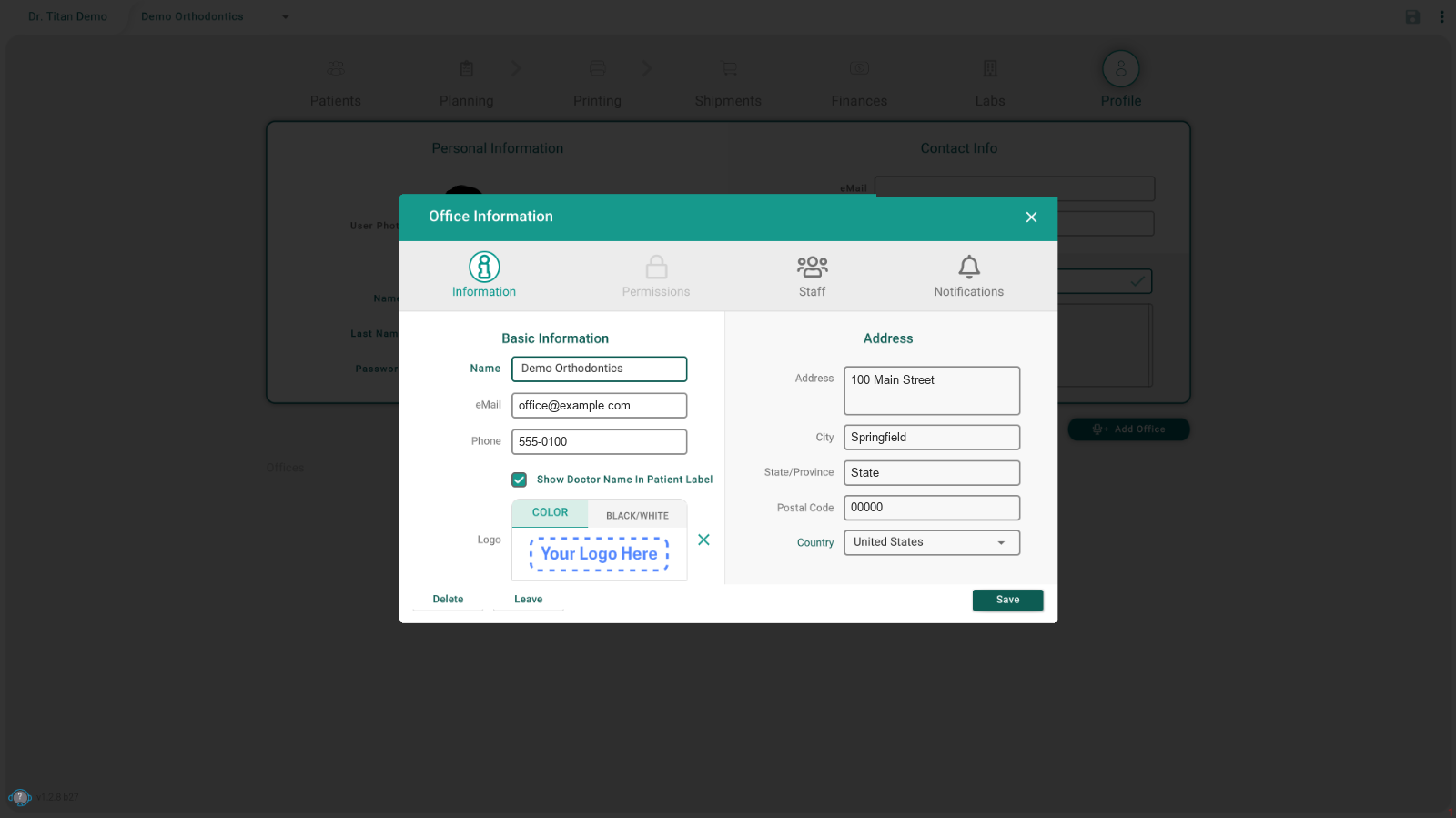
Office details
The Information tab holds the office's name, email, phone, and address, plus its logo (in color or black and white). The Show Doctor Name In Patient Label option adds the doctor's name to patient labels. Click Save to keep your changes.
Staff and roles
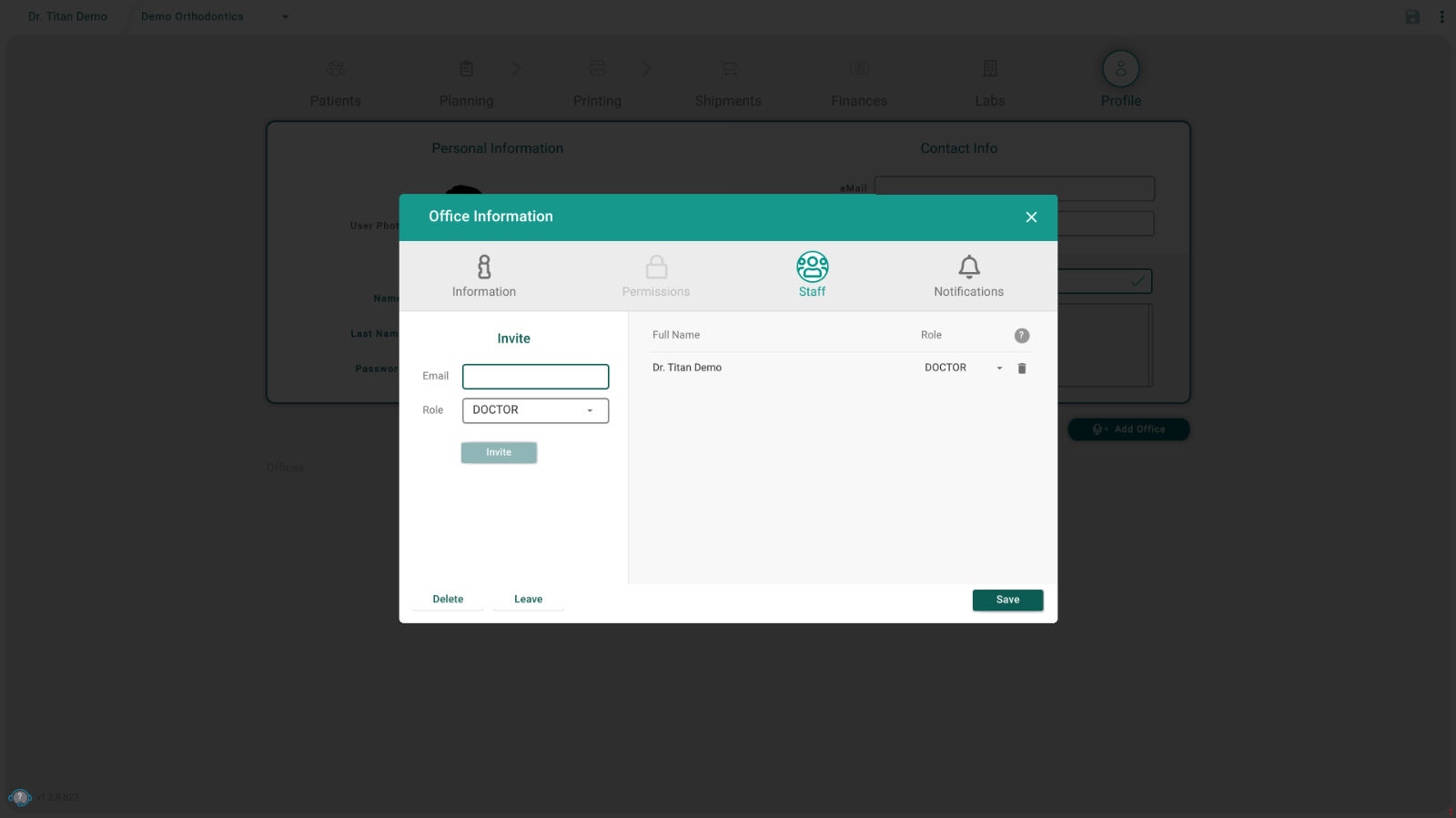
Invite someone:
- Open the Staff tab.
- Under Invite, type the person's email and choose a role.
- Click Invite.
Change a role: open the role list next to the person's name and choose the new role. The change applies immediately, and Titan confirms it with "The role has been changed." Roles include Doctor, Coordinator, Office Manager, Treatment Supervisor, Treatment Technician, and Printing Technician.
Remove someone: click the trash icon on their row and confirm.
Notifications
The Notifications tab chooses which events the office notifies about: new print orders, credits bought, low credits, and staff changes.
Leave or delete an office
Click Leave to stop being a member, or Delete to delete the office. Titan asks you to confirm either one.
Tips
- Some options are greyed out or missing? Seeing staff, inviting, removing people, changing roles, and editing notifications each depend on your role.
- The Staff and Notifications tabs are disabled? The office is still being created. Save it first.
- The Permissions tab is always disabled in the current version.