Add Patient
Add a new patient from the Doctor Dashboard's Patients tab by clicking Add Patient. A window opens where you fill in the patient's information.
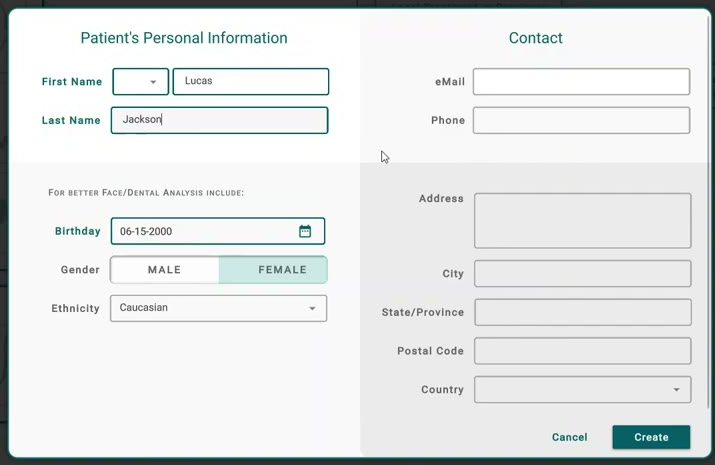
Filling in the form
- First Name is the only field you must fill in.
- Last Name, Birthday, Gender, and Ethnicity are optional, but worth filling in when you know them: Titan uses the patient's age and ethnicity to compare findings against the right clinical norms during self-diagnosis. Leaving Ethnicity blank, or choosing "Other", both fall back to a general norm instead of one adjusted for that patient. Leaving the birthday blank doesn't skip the age-based norms either — Titan assumes an adult.
- The Contact fields (eMail, Phone, Address, City, State/Province, Postal Code, Country) don't even show while you're creating the patient. You'll find them later, once the patient exists, on their profile.
Creating the patient
- Fill in at least the First Name.
- Click Next.
- Choose what to do: start a Full Case, Active Retainers, or Passive Retainers plan right away, or create an Empty Patient and fill in their dashboard first. Choosing Empty Patient takes you straight to the new Patient Dashboard; the other three take you into planning instead.
Tips
- Last Name and Birthday look like required fields, but Titan lets you create the patient without them — only the First Name actually has to be filled in.
- If you need to add the patient's email, phone, or address, do that afterward from their profile — those fields aren't part of the creation form.