Dental Chart
The Dental Chart is a chart of the patient's 32 teeth where you mark a tooth's condition. Open it from the Dental Chart card on the patient's dashboard. The card shows the chart on its own; the full chart is where you edit it.
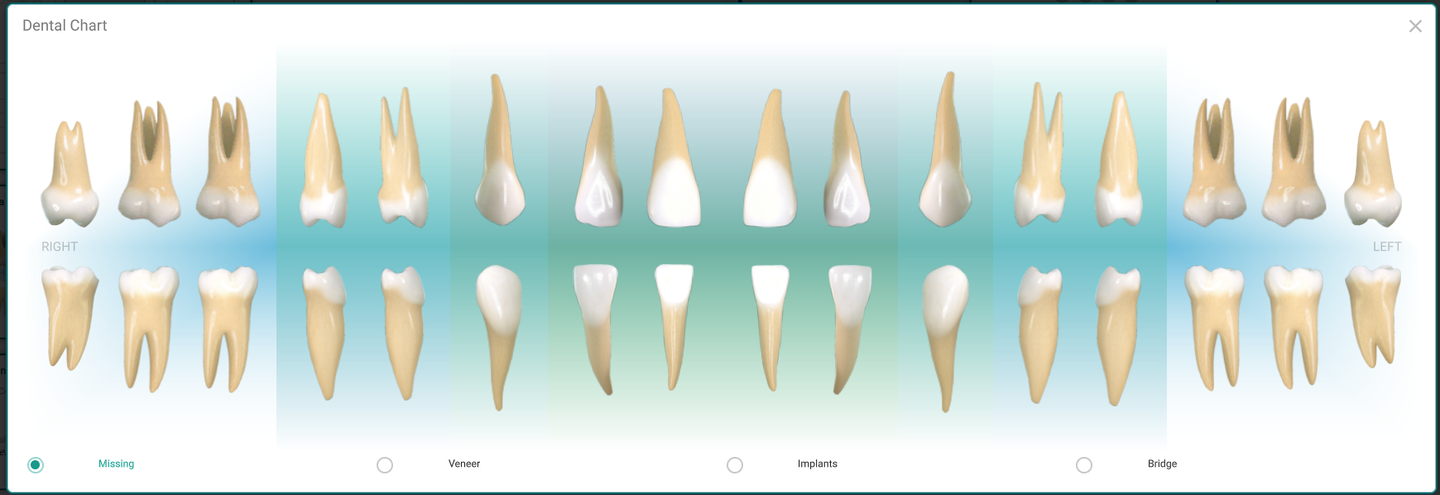
Mark a tooth's condition
- Pick a condition at the bottom: Missing, Veneer, Implant, or Bridge.
- Click a tooth to mark it with that condition. Click it again to clear it back to normal.
- Switch conditions and mark more teeth. Each condition shows how many teeth carry it.
The teeth are laid out as the upper and lower arches, split right and left.
Tips
- The tooth numbers follow your numbering setting (Universal, FDI, or Palmer) from Settings, and change with it.
- Teeth you mark as an Implant or a Bridge are locked in treatment planning — staging won't move them.
- Your changes save when you close the chart, not with each click.
- If the teeth don't respond to clicks, your account can only view a patient's dental chart. Ask your office manager for permission to edit it.