CT Scan Segmentation
Runs automatic segmentation on the CT scan, separating bone and the nerve canal, and lets you compare that against the dental scan's teeth. This step is optional — skip it and come back later if you want.
Open it
In the 3D View, the CT Scan Segmentation step runs right after CT Scan Orientation.
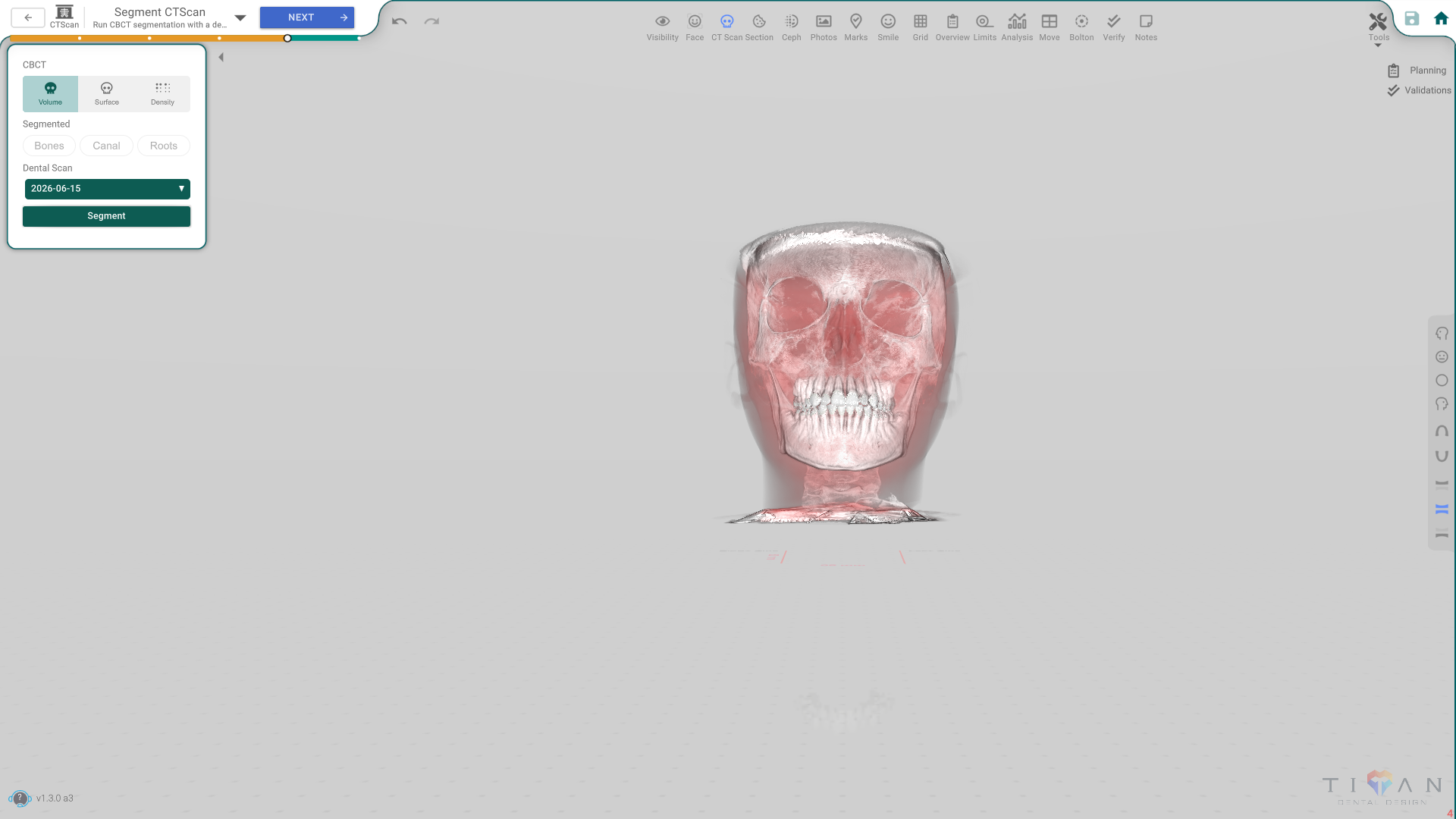
The panel, control by control
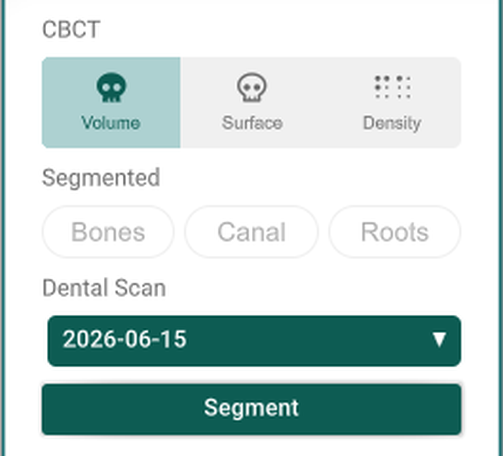
- Volume / Surface / Density — switches the volume's render mode.
- Bones / Canal / Roots — toggle chips to show or hide each segmented result.
- Dental Scan — picks which dental scan to compare this CT scan against.
- Segment — runs the segmentation, with a progress bar while it works.
- Change Teeth Matching (not pictured) — once a segmentation has run, opens the matching flow to adjust how the teeth match the CBCT.
Good to know
- Segment stays disabled? It only turns on once the dental scan has a CT scan imported and the dental scan itself is past Add Teeth and Identify Teeth — pick a dental scan in the dropdown first if it's still off.
- This step never blocks you from moving on — it's fine to come back to it later.
- Both arches show solid here, so you can compare the fused crown-and-root teeth against the CBCT directly.