Patient Dashboard
The Patient Dashboard is a patient's own page. The patient's rail shows who the patient is and their records. The Treatments panel holds every case, its plans and its print orders. You reach it from the Patients list, or right after adding a new patient.
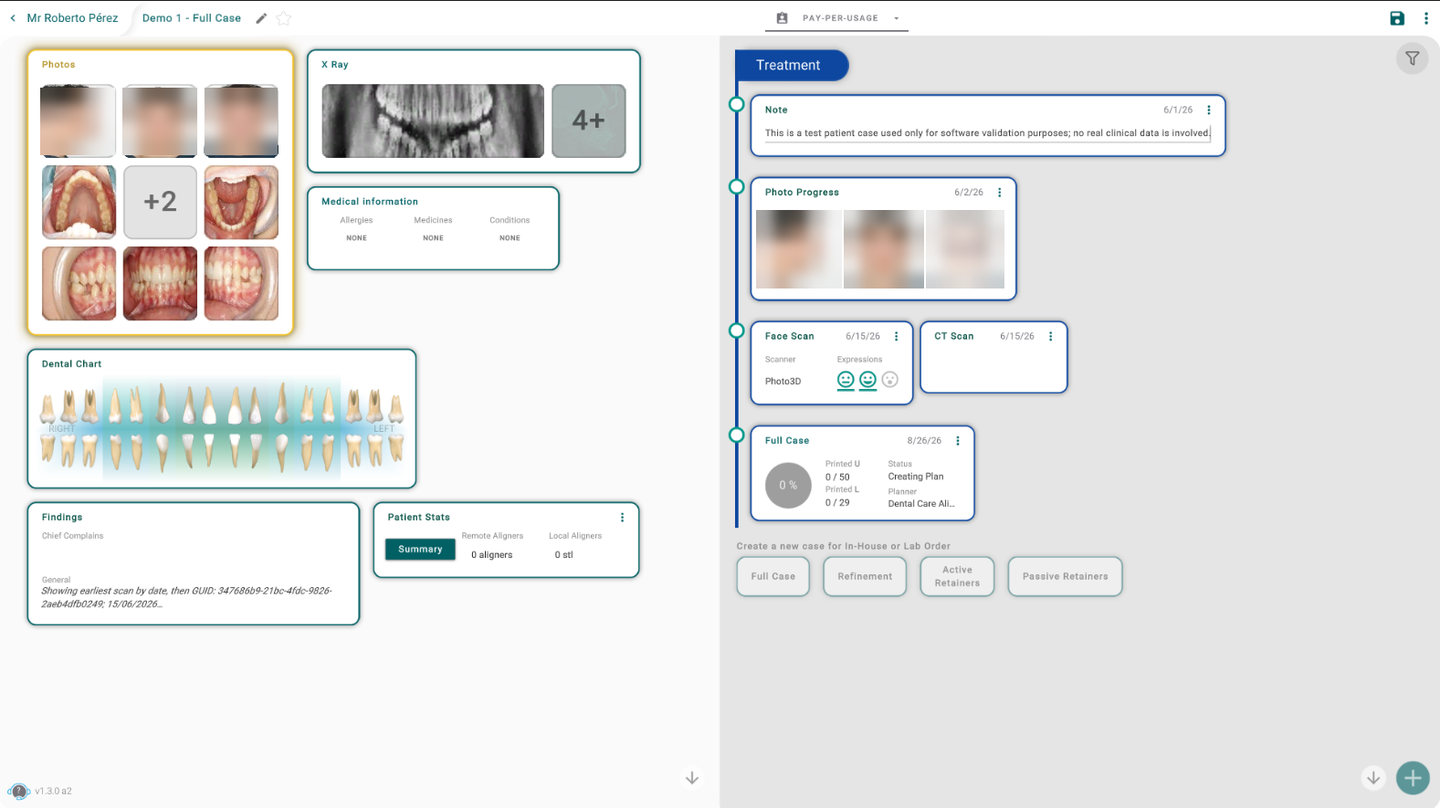
Start a treatment
To start a treatment, follow these steps:
- In the Treatments panel, scroll to Create treatment.
- Click Full case or Refinement. For retainers, click Retainers and pick Active retainers or Passive retainers.
Titan opens the planning order form. A Refinement needs a treatment that was already printed.
Import a scan or a record
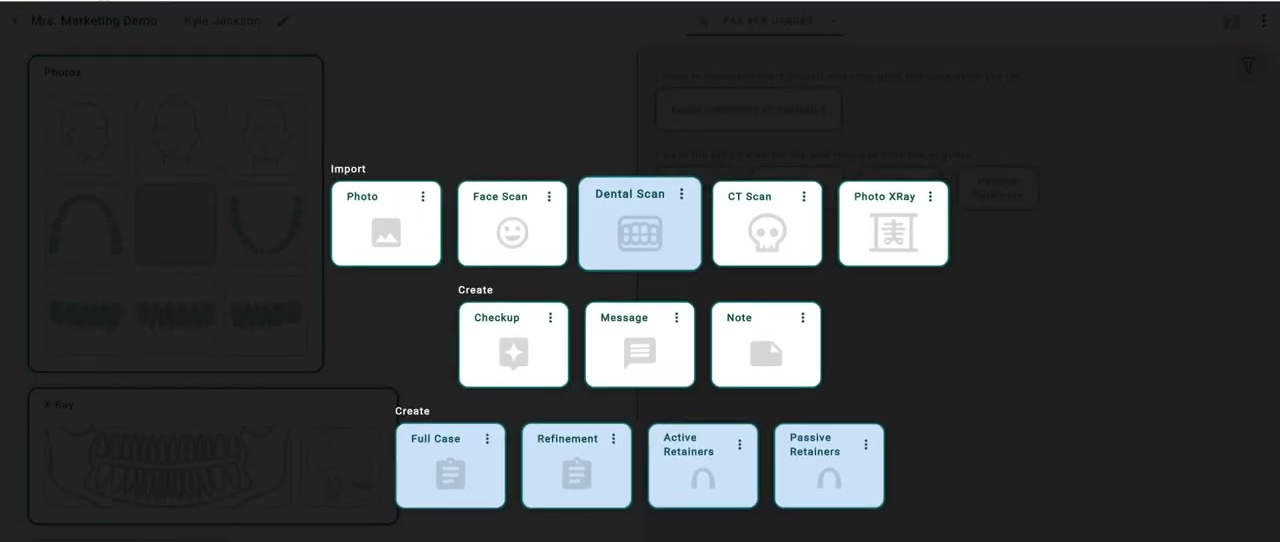
- In Create treatment, click Import.
- Pick Face Scan, CT Scan or Multi-Scans.
The scans open the 3D view, ready to bring the file in. To add photos or X-rays, click + beside the Photos and X-rays tabs on the patient's rail.
The green + button in the bottom-right corner opens every choice in one window: Import (with Dental Scan, Photo and X-Ray too), Create (Note; Checkup and Message are greyed out) and the four kinds of treatment.
What's on the patient's rail
- Name — click the pencil to open the patient's profile.
- External ID — click it to edit it in place. Press Enter or click elsewhere to save, or Esc to cancel. The patient's tags are under it.
- Diagnosis — a short summary of the Clinical Report. See Findings.
- Photos and X-rays — click the picture to open the Photo Gallery.
- Notes — the patient's notes. Click a note or + to write one. See Notes, checkups and photos.
- Medical history — a summary of the allergies, medications and conditions; Open medical information opens Medical Information.
- Dental chart — unfolds to show the chart. A click on the chart opens the Dental Chart.
What's in the Treatments header
- Collapse all — closes every case. With every case closed it reads Expand all, which opens them all.
- Save — saves your changes. It shows only when there's something to save.
- Billing — the patient's Remote and Local aligner counts, the amount spent, the local STL export cap and the patient's plans, with Go Wallet, Statement and Current Plan.
- ⋯ — Delete Patient, Move to office, Settings, About and Logout.
Each case is explained in Treatment card.
Good to know
- ← Patients, on the patient's rail, goes back to the Patients list. Titan saves the patient first. If the save fails, you stay on the patient, so nothing is lost.
- In a narrow window, the page shows one side at a time under the Patient and Treatments tabs.
- Billing shows only to users with access to finances.
- Press F1 for help on this page, or F5 to reload the patient's files.