Treatment Ready
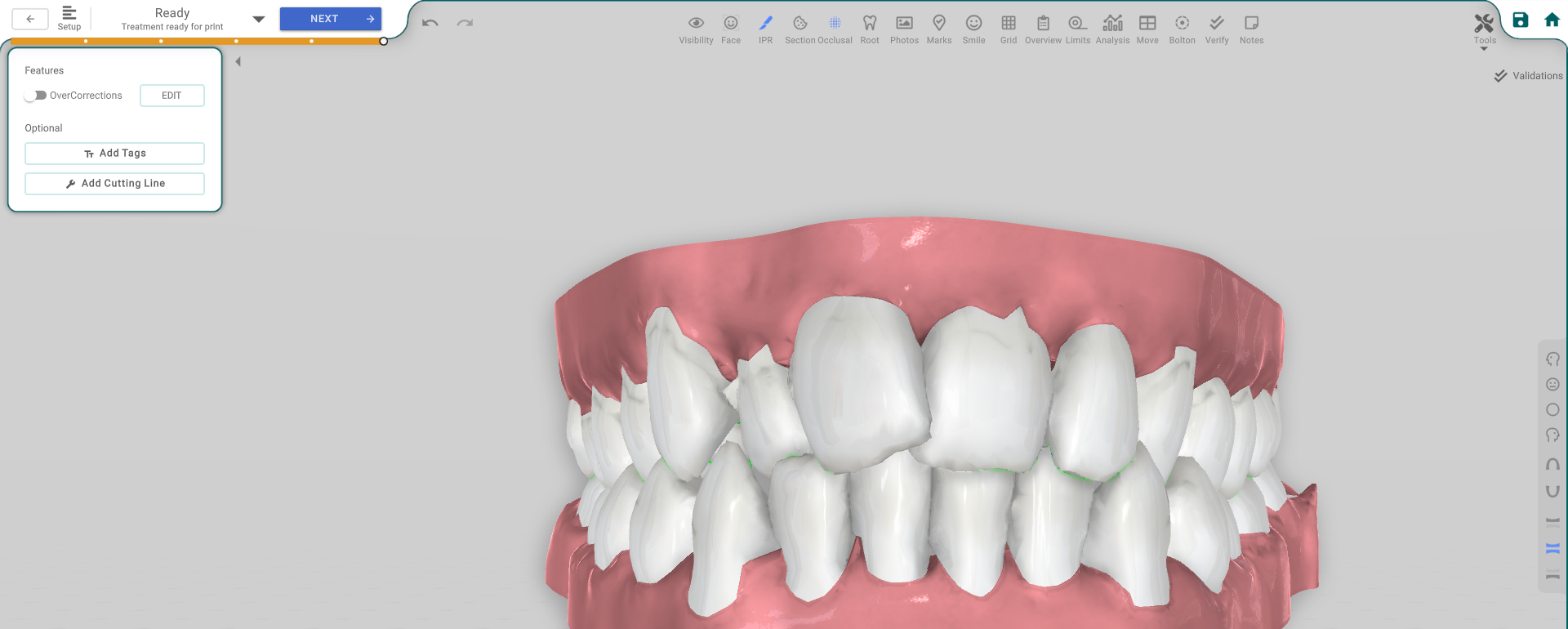
The Ready step is the final check before the treatment goes to printing. When you open it, Titan runs every validation automatically and shows you the last few options — overcorrection and the optional labels and trimline.
Open it
In the 3D View, the Ready step is the last Treatment-Setup phase, after Overcorrections.
Validations
When you enter the step, the Validations popup opens and checks every rule. It lists anything that would block printing — read it and fix what it shows before you move on. You can also open it from any phase with the Verify button on the top toolbar; some issues there can be fixed automatically.
Last options
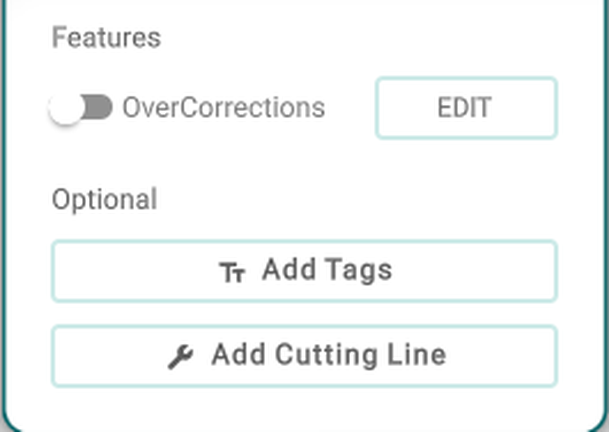
- OverCorrections — the same switch as the Overcorrections step; EDIT jumps there to change it.
- Add Tags (optional) — add the tooth labels/tags to the printed models.
- Add Cutting Line (optional) — add the trimline to the printed models.
Good to know
- Mid-treatment collision? In Validations, use Fix Mid Treatment Collisions to let Titan adjust the movements automatically, or do it yourself in Auto Staging's advanced options, or by hand in the timeline. The automatic fix can add small movements you didn't plan — check the timeline afterward.
- The validations run once when you enter the step.
- This is the gate between planning and printing — once it's clean, you can create a print order.