Dental Landmarks
Place landmarks directly on the teeth — cusps and contact points. It's the same tool used for Face Landmarks and CT Scan Landmarks, opened here from the toolbar while you're working on the teeth.
Open it
In the 3D View, click Marks on the top toolbar while on a teeth-treatment step (Setup, Staging, and others).
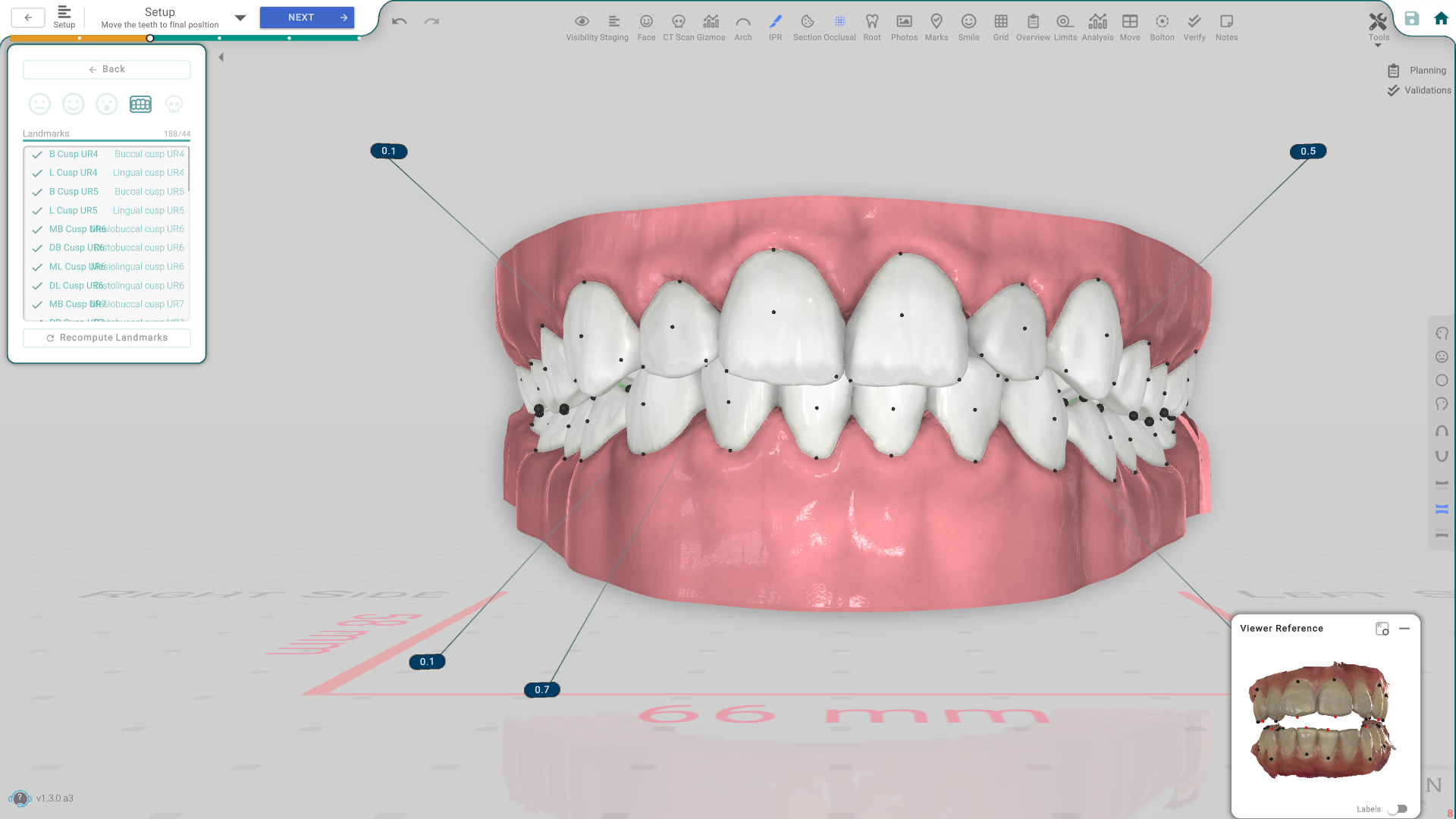
The panel, control by control
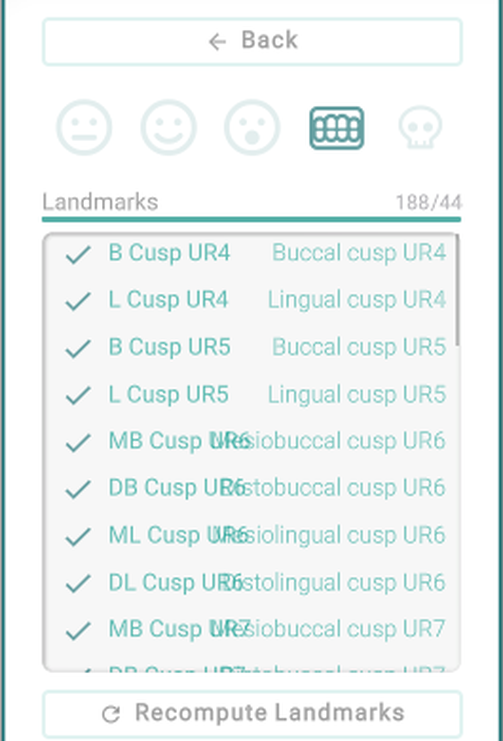
- Back — closes the panel and returns to what you were doing.
- Landmarks list — the crown landmark set with a placed/total count. Click a landmark to select and place it.
- Recompute Landmarks — re-runs automatic landmark detection on the teeth.
- Delete — removes the selected landmark.
- Viewer Reference (bottom right, not pictured here) — a separate close-up view of the landmarks; Expand or Hide it, and turn Labels on to see each landmark's name there.
Good to know
- This opens as a popup over your current step — closing it doesn't change your step.
- If Marks isn't on the toolbar, it isn't one of your favorites, or your lab hid it.
- A dental scan with its teeth identified needs to be loaded first.