Treatment card
Each case on the patient's Treatments panel is a card: one dental scan, the plans made from it, and their print orders. Cases are listed newest first, and the newest one starts open. Click a case's row to open or close it.
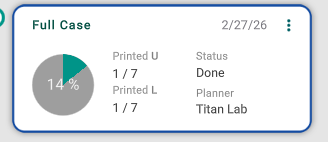
Open a plan
In the plan's row, click Open 3D plan. A plan from a planning order opens with its planning; any other plan opens in the 3D view. A treatment tied to a submitted plan opens read-only.
Read a case
The case's row shows its title (for example Refinement 1), its number of plans, its date, and a status pill: Awaiting Scan, Ready to Print, In Treatment or Delivered. Hover the pill for the detail.
An open case shows five steps: Scan, Diagnosis, Treatment plan, Print and Deliver. A check marks a step that's done, and an arrow marks the next one. Diagnosis is optional: it's checked once a diagnosis is recorded or the case's work in the 3D view moved past its diagnosis step; a dash means neither.
Each plan then has a row:
- Series letter — click it to pick a series from A to H.
- Name — click the pencil to rename the plan.
- Status — Not printed, Partly printed, Printed or Awaiting approval.
- U and L — aligners printed out of the total, upper and lower.
Use the plan's ⋮ menu
- Schedule Print — order a print. See Create a print order.
- Export Stl — get the files without ordering. See Export STL.
- Print Overview — print a treatment letter, not the print order.
- Share — get a link for a colleague or the patient. A local treatment becomes a planning first, after you confirm.
- Duplicate — make a copy named "Copy - …".
- Set Series and Set Date — change the series letter or the date.
- Delete — remove the plan. You can't while a print order or a planning uses it.
Answer the lab
While a lab designs the plan, the case shows the plan type "requested from" the lab, with the order's status. If the lab asked a question, click Respond. If the lab sent the request back, click Edit request.
Folds inside a case
- N previous versions — earlier planning orders on the same scan.
- N print orders — the case's prints, latest 5 first; Show all lists the rest. Click a row to open the order, or use its ⋮.
- N records — face scans, CT scans and checkups. See Scan cards.
Good to know
- In a case with a planning order, the plan's ⋮ has only the plan's options; Delete plan removes the plan. Otherwise the ⋮ has the plan's options and the scan's date; Delete removes the plan with its scan, or Delete treatment only that plan when the case has several.
- Renaming, Set Series, Set Date and Delete need permission to modify treatments. If nothing happens, ask your office manager.
- An amber dot on a case, or a warning icon on a plan, marks something to check.