Create a planning order
Turn a case into a plan you can send to a lab or make yourself. The form has five steps — Records → Prescription → Review → Location → Order — and opens next to the 3D view.
Open it from the patient
On the patient's dashboard, in the Treatments panel, under Create treatment, click Full case or Refinement. For retainers, click Retainers and pick Active retainers or Passive retainers.
Fill in the order
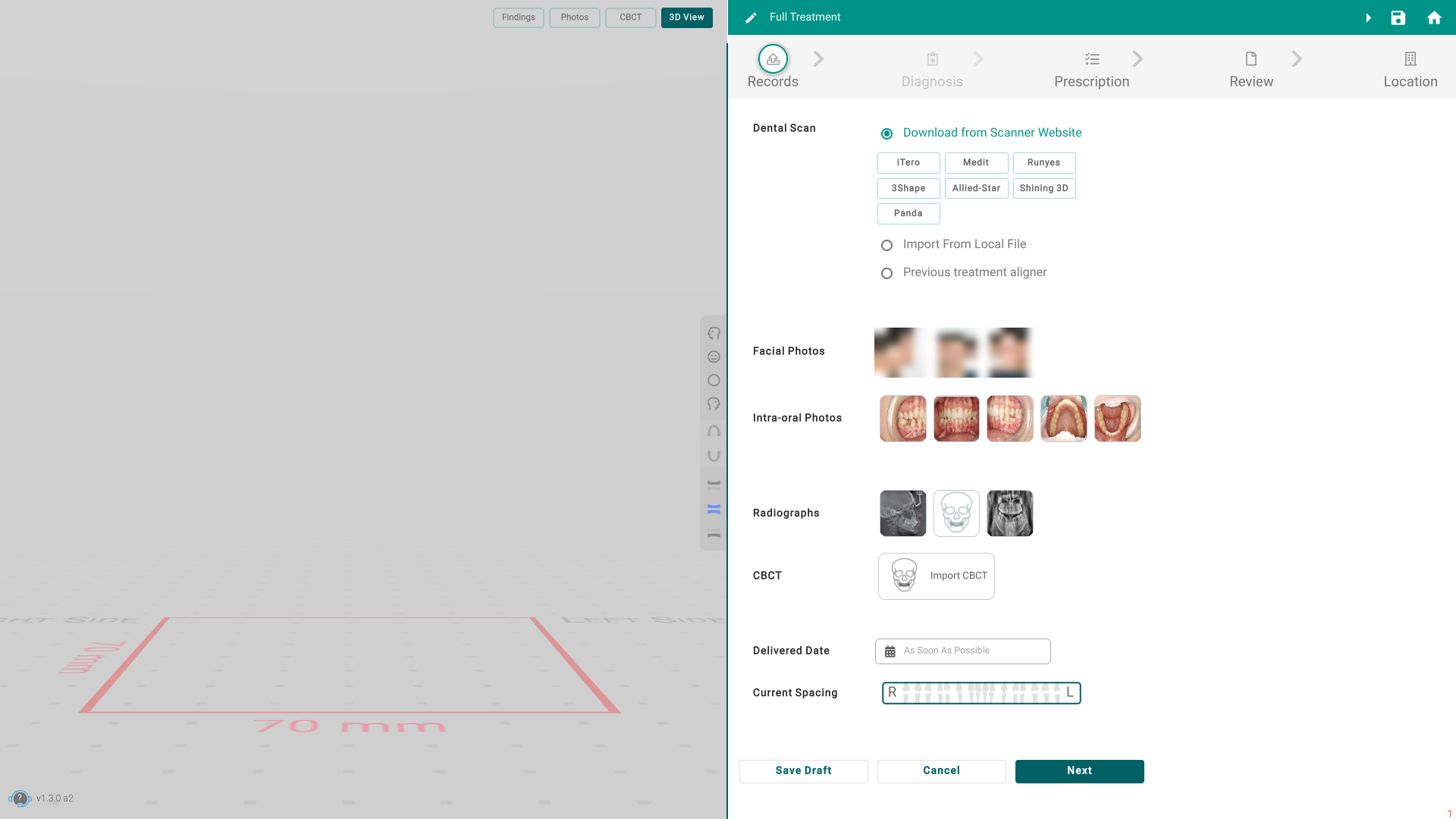
- Records — bring in the dental scan (from your scanner's website, a local file, or a previous aligner), the facial and intra-oral photos, the radiographs, and the CBCT if you have one. You can also set a delivery date and the current spacing.
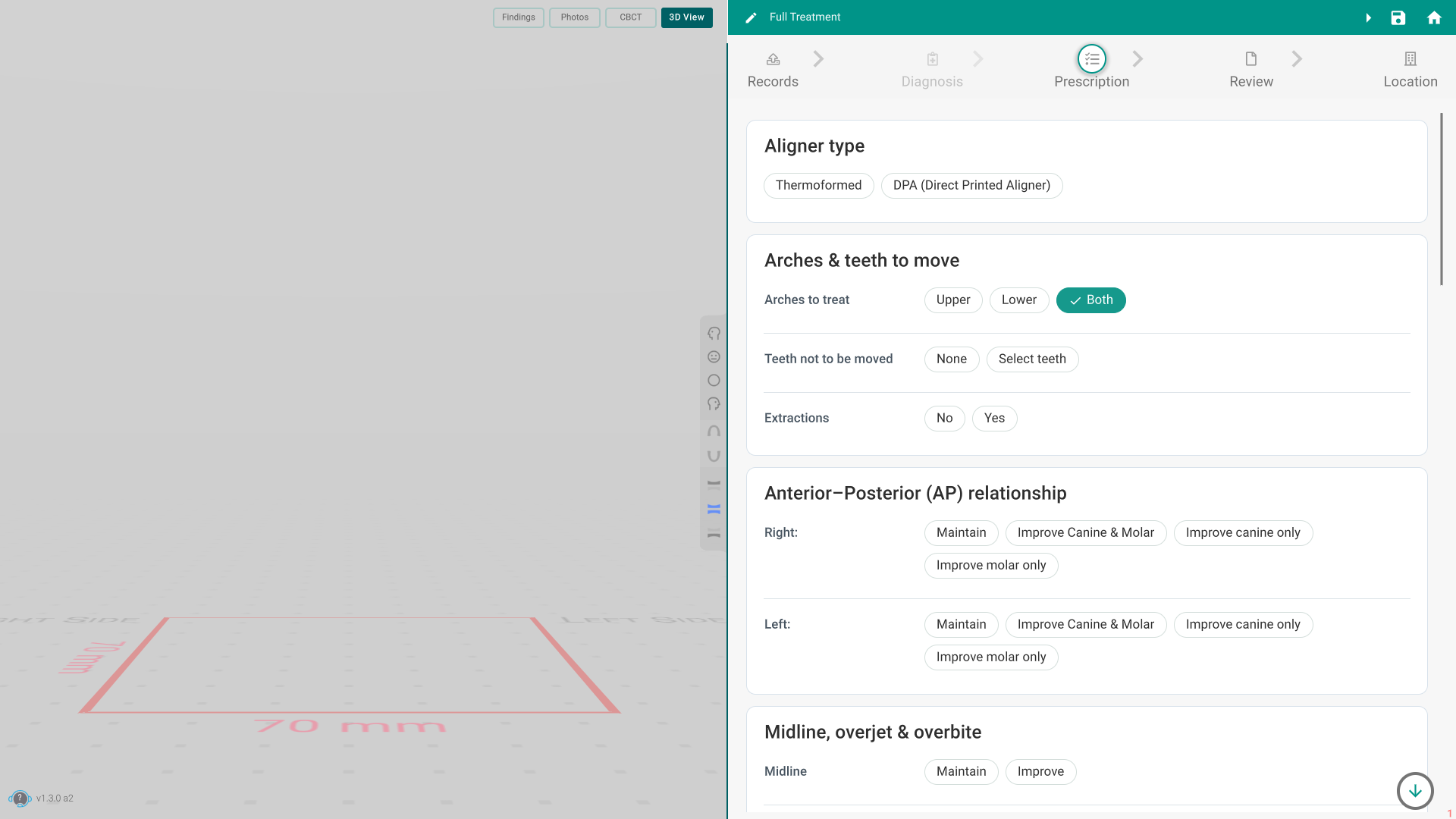
- Prescription — answer the planning questions: aligner type, arches and teeth to move, AP relationship, midline, overjet and overbite, spacing, crowding, Bolton discrepancy, attachments, elastics and auxiliaries, overcorrection, trimline preferences, and hybrid treatment. A box for extra instructions closes out every case type. Active and Passive Retainers ask fewer questions.
- Review — check the Original and Reviewed instructions, or use Review with AI.
- Location — choose where the plan is made: In-House, a Lab, or Hybrid (plan in one place, manufacture in another).
- Order — check the summary and place the order. The button reads Submit To Lab for a lab case, or Start Planning for an In-House one.
Good to know
- Save Draft works at any step. The order doesn't send until you place it on the Order step; a draft shows as DRAFT in the Planning list.
- A step stays closed until the earlier ones are complete. If the dental scan, a required answer, or a photo is missing, Titan tells you what's needed.
- Passive Retainers skip the Location step.
- Click Change in the header to switch the case type at any time.
- Use the Findings, Photos, CBCT, and 3D View tabs on the left to check the case while you fill in the order.