Cross Section
Cross Section cuts the model open along a plane so you can see what's happening inside it: how much material sits between a tooth and the aligner shell, where a root sits relative to the bone, or the wall thickness on a Shell or Hollow design. It's a viewing tool — it doesn't change anything in the plan. In Titan, it's a tool on the toolbar at the top of the viewer.
Open it
In the 3D View, press the Section button on the top toolbar.
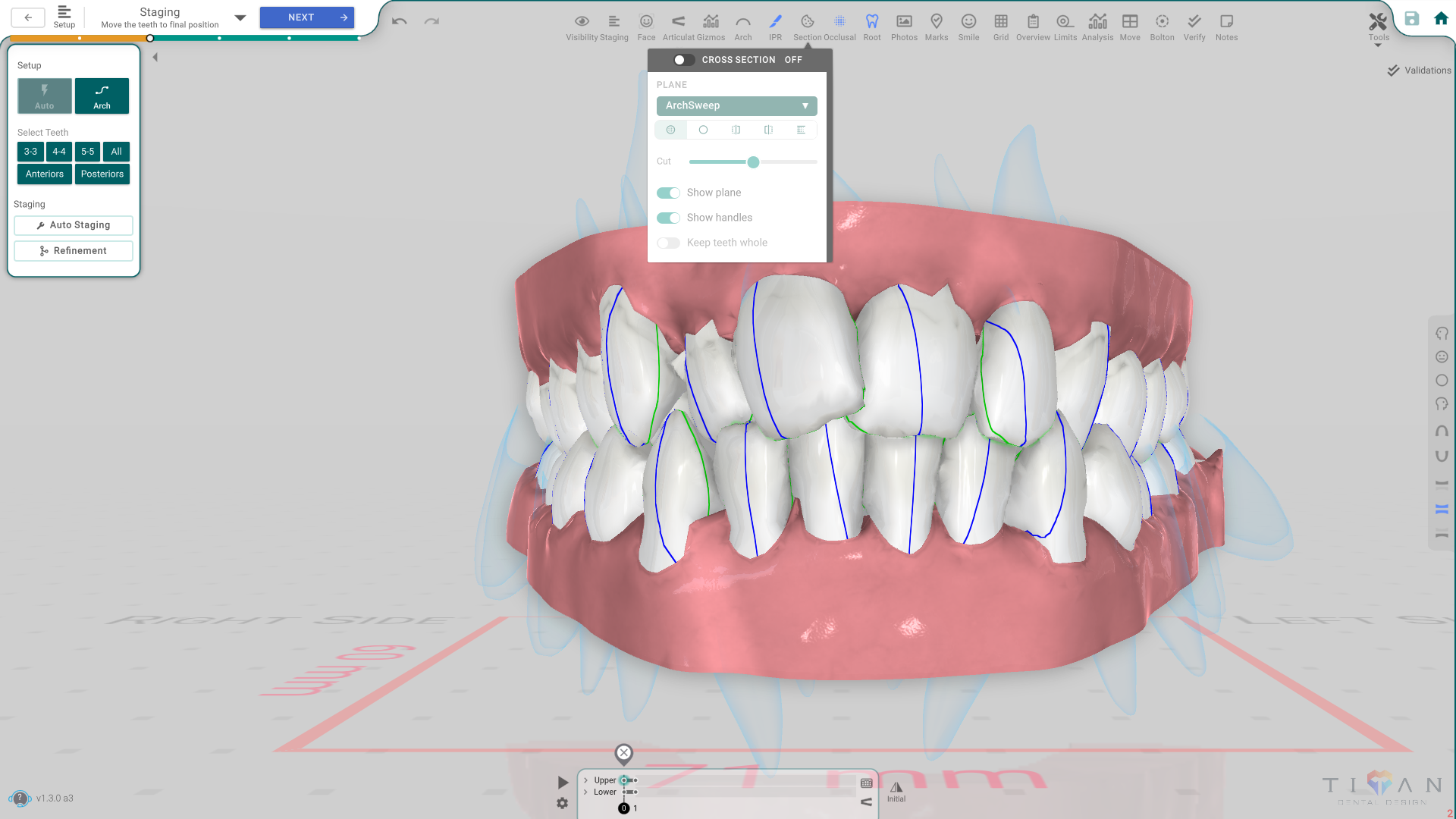
The panel, button by button
Hover (or tap) the Section icon again to open its options panel:
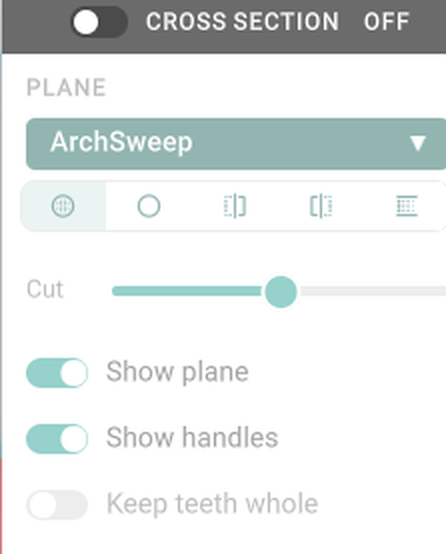
- Cross Section ON/OFF — the same switch as the toolbar icon.
- Plane — ArchSweep / Sagittal / Coronal / Occlusal / Manual — ArchSweep follows the curve of the arch; Sagittal, Coronal and Occlusal cut along a fixed axis; Manual lets you place three points to define your own plane.
- How it's drawn (the row of five icons) — Overlay (the default) shows the whole model with the cut traced as a line on top; Contour hides the cut-away part and shows only the line; Side A, Side B and Band actually remove part of the model — Band keeps a strip centred on the plane.
- Cut — drag to move the cut along the plane you chose.
- Show plane / Show handles — see and drag the cut plane directly in the 3D view.
- Keep teeth whole — shows each tooth or attachment either completely or not at all, instead of slicing through it.
Good to know
- Cross Section turns off automatically when viewing the face with the teeth aligned inside it, and when you export a photo.
- A plane that follows the arch cuts both sides at once — a cut you place on one side can also appear on the opposite side.
- The trimline, roots, pontics and the CBCT volume aren't affected by the cut yet.