Auto Staging
Auto Staging sequences the planned movement into aligner steps for you, and gives you tools to clean the staging up — timing, collisions, speed and keyframes. You reach it from the Staging area.
Open it
In the 3D View, in the Staging area, open the auto-staging tools. Back returns to the phase.
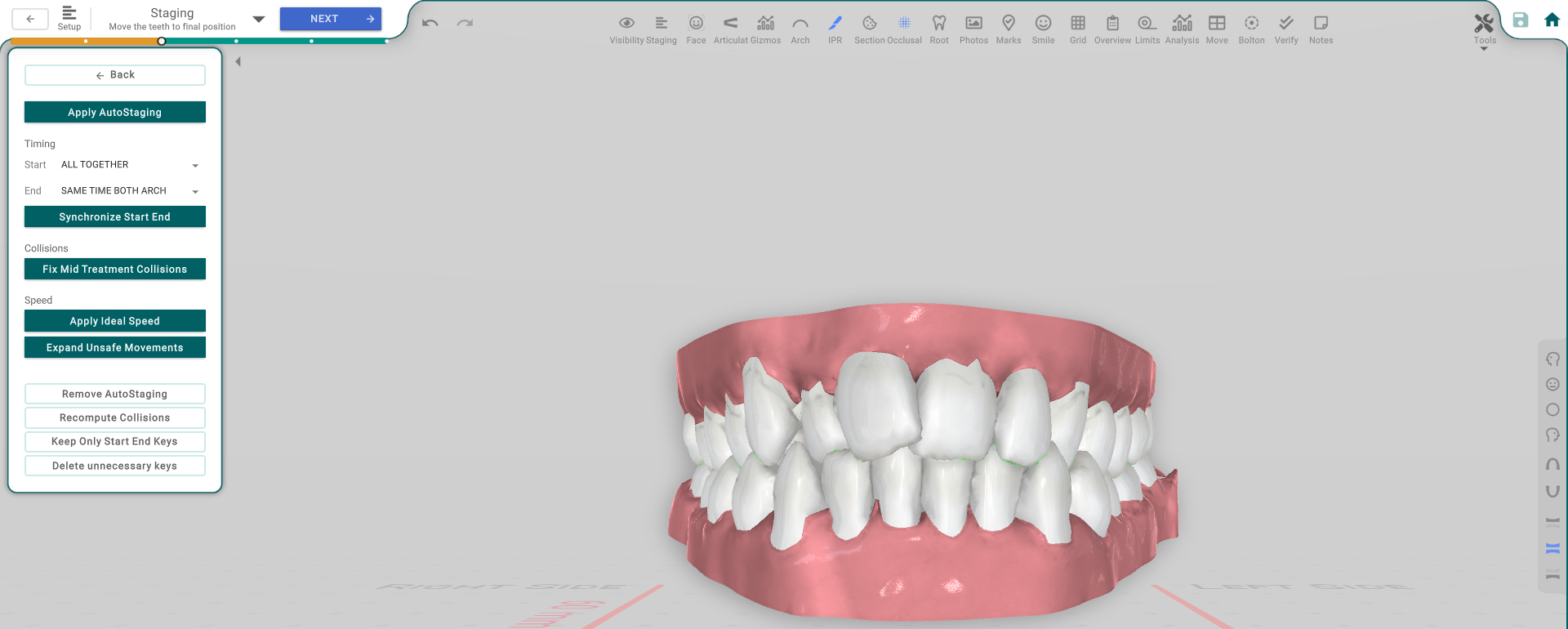
The panel, button by button
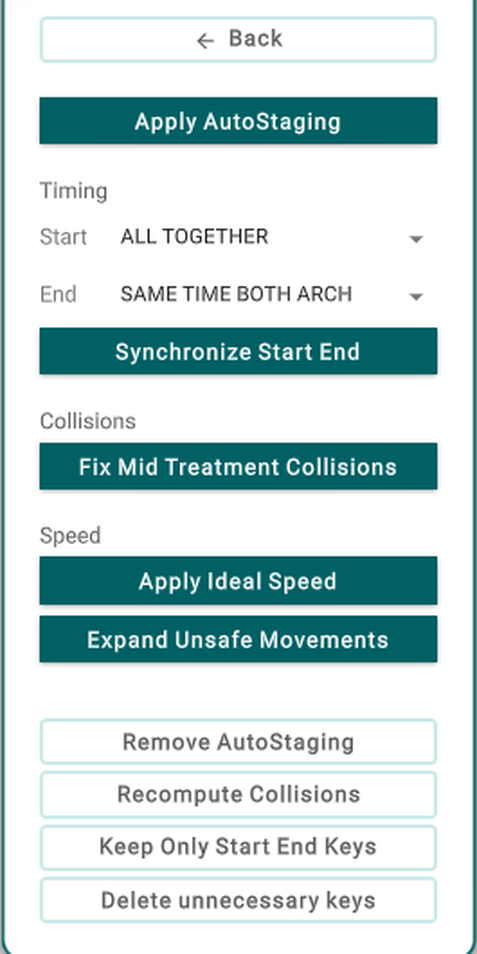
- Apply AutoStaging — sequences the movement into aligner steps automatically.
- Timing — Start / End — set how each tooth's move is timed across the steps (for example, all teeth together, or one after another).
- Synchronize Start End — line the start and end of both arches up.
- Fix Mid Treatment Collisions — resolve teeth that collide partway through the plan.
- Apply Ideal Speed — keep every move at a safe speed, spreading a too-fast move over more steps.
- Expand Unsafe Movements — the same safety check, applied again after other changes.
- Remove AutoStaging — clears the generated staging.
- Recompute Collisions — re-check the timeline for collisions after a manual edit.
- Keep Only Start/End Keys — drop every keyframe except the first and last.
- Delete unnecessary keys — tidy up keyframes the timeline no longer needs.
Good to know
- These tools act on the whole timeline, not a single tooth.
- Remove AutoStaging undoes the generated sequence.