Attachment Presets
A preset is a saved set of attachments you can apply to a case in one step. From the Attachments step, the Presets button opens the presets list; selecting a preset opens its own editor. This page is about running those panels.
Open it
In the 3D View, go to the Attachments step and press Presets on the Attachments panel. Select a preset row to open its editor. Back returns — from a preset to the list, from the list to the Attachments panel.
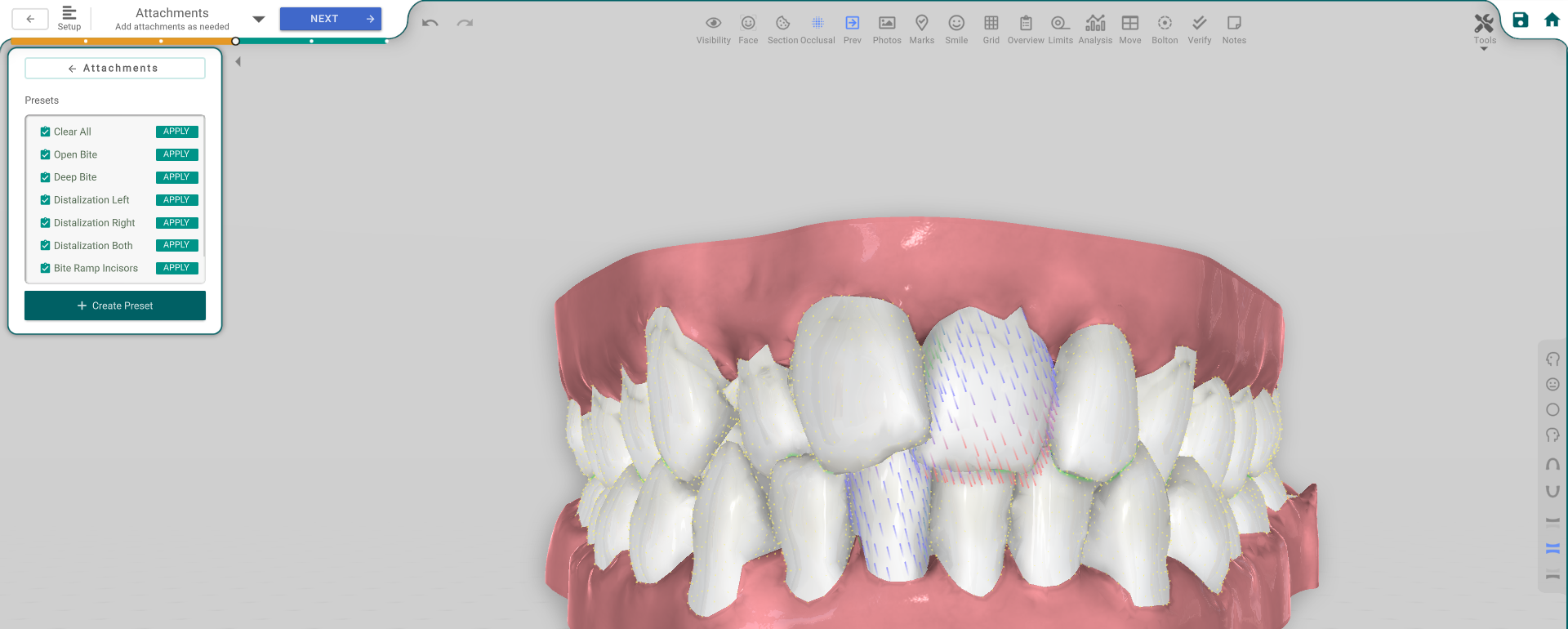
The presets list
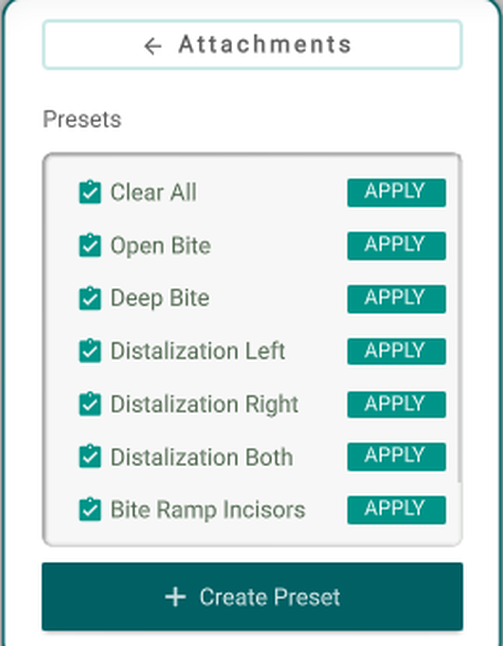
The list shows two groups: the global presets (built in — Clear All, Open Bite, Deep Bite, Distalization Left/Right/Both, Bite Ramp Incisors) and your user presets.
Each row has an APPLY button. Applying opens a short dialog: Apply adds the preset's attachments to what's already there, Reset and apply clears the current attachments first, or Cancel.
Create Preset at the bottom saves the attachments currently on the case as a new user preset.
A single preset
Select a preset to open it. You see the preset's name and the attachments it contains.
For your own (user) presets you can rename the preset, remove an attachment from it, or Delete the whole preset. Built-in presets are read-only — you can only Apply them.
Apply and Delete ask you to confirm first.
Good to know
- Only your own presets can be renamed, edited or deleted.
- The controls are greyed out without the treatment-edit permission.