Select CT Scan
This is where the CT Scan workflow starts: pick which of the patient's CT (CBCT) scans to work on. If the patient has only one, or one is already linked to the dental scan, Titan selects it for you automatically.
Open it
Open a patient's treatment in the 3D View and start the CT Scan workflow. The first step is Select CT Scan, shown in the panel on the left.
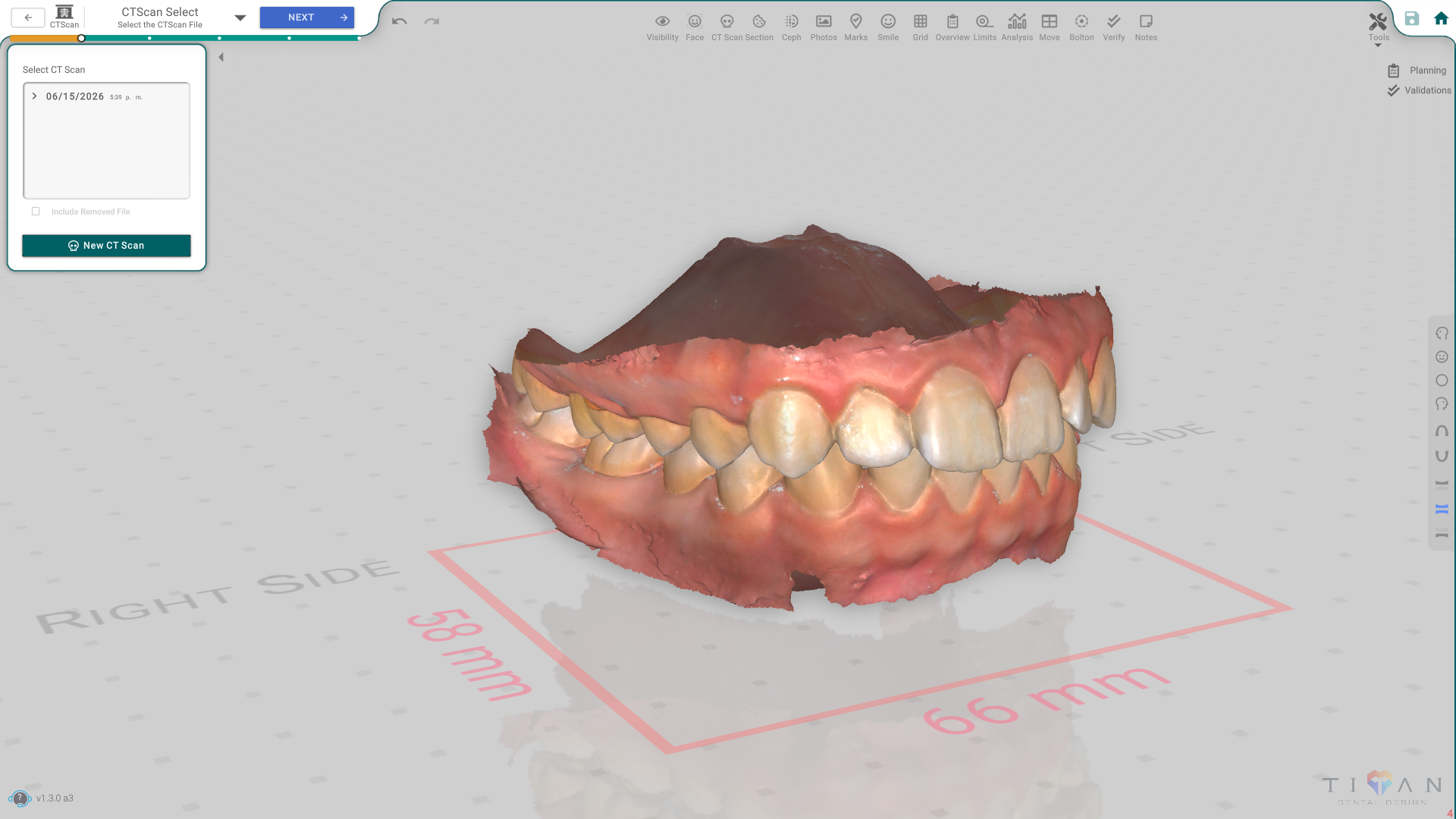
The panel, control by control
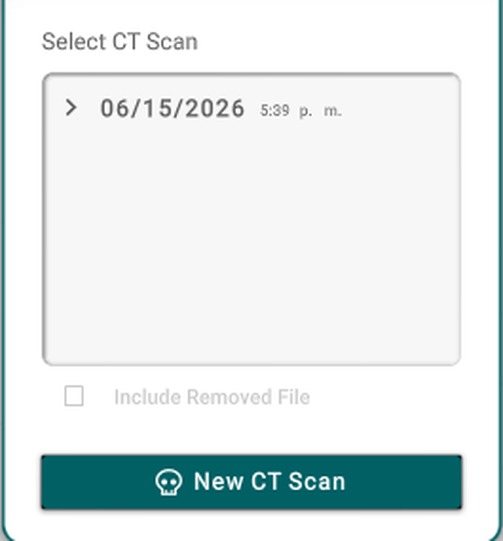
- The CT scans list — the patient's CT scans. Click one to select it.
- Include Removed File — also shows deleted CT scans in the list.
- New CT Scan — starts a brand-new CT scan.
Good to know
- With a single CT scan on file, or one already linked to the dental scan, Titan selects it and moves on automatically.
- The scan you select here is the one you'll work with in Properties, Orientation, Segmentation and Landmarks.