Label
When you select one of the labels on the model in the Labels step, its own panel opens — its type, its text, its font, and (for a laser label) its marking settings.
Open it
In the 3D View, go to the Labels step and click a label on the model.
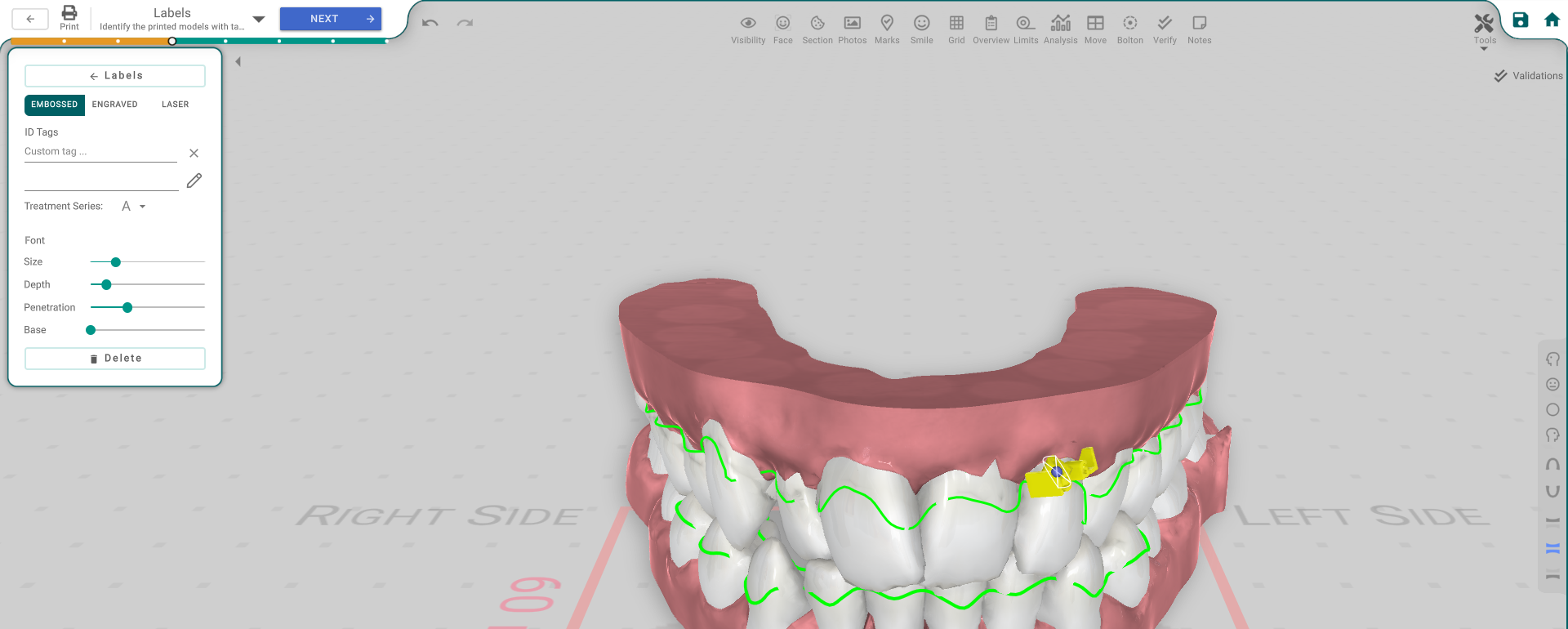
The panel, button by button
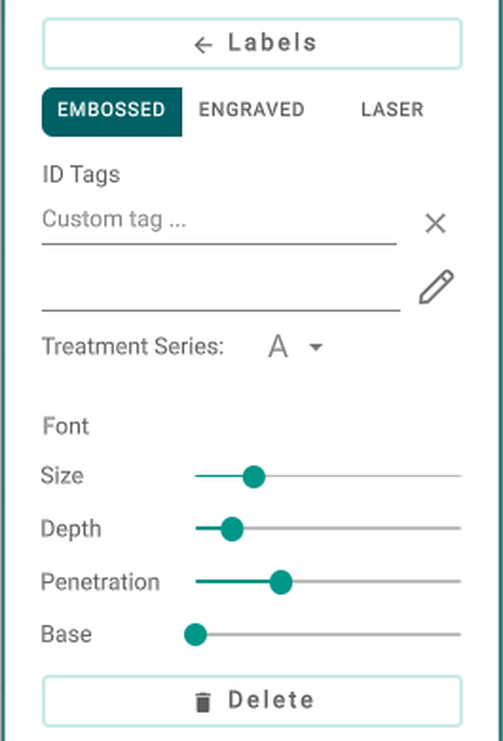
- Labels (Back) — goes back to the list.
- Embossed / Engraved / Laser — the label's type.
- Custom tag — free text for the label.
- ID Tags (pencil) — pick which fields (like the patient or step) are included in the printed tag.
- Treatment Series — the series letter.
- Font — Size / Depth / Penetration / Base — for an embossed or engraved label. A Laser label shows Axis and Mode (Text, Marker, Logo or Step) instead — a Laser Marker has no text, so the ID Tags are hidden for it.
- Delete — removes the label (or the Delete key, unless you're typing in a field).
Good to know
- The controls are greyed out without the treatment-edit permission.