Twin Blocks
A twin block is an appliance built into the aligners that posts the lower jaw forward. When you select a placed twin block in the Attachments step, its own panel opens: a Jaw tab and an Anchors tab, the material, the aligner range, how the block sizes across the steps, and the tools. What twin blocks are for clinically is covered in the twin-blocks manual; this page is about running the panel.
Open it
In the 3D View, go to the Attachments step and click a placed twin block. The Twin Block panel follows the selected block.
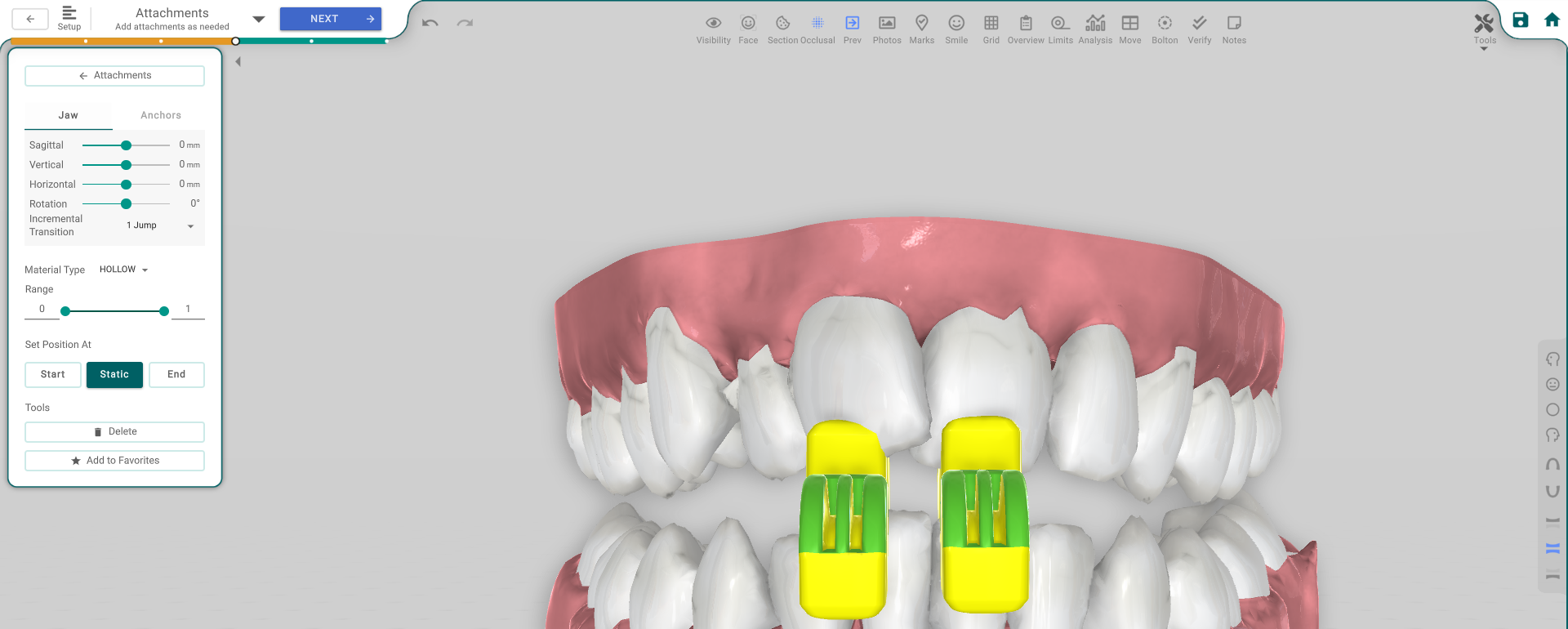
The panel, button by button
The panel has two tabs, Jaw and Anchors:
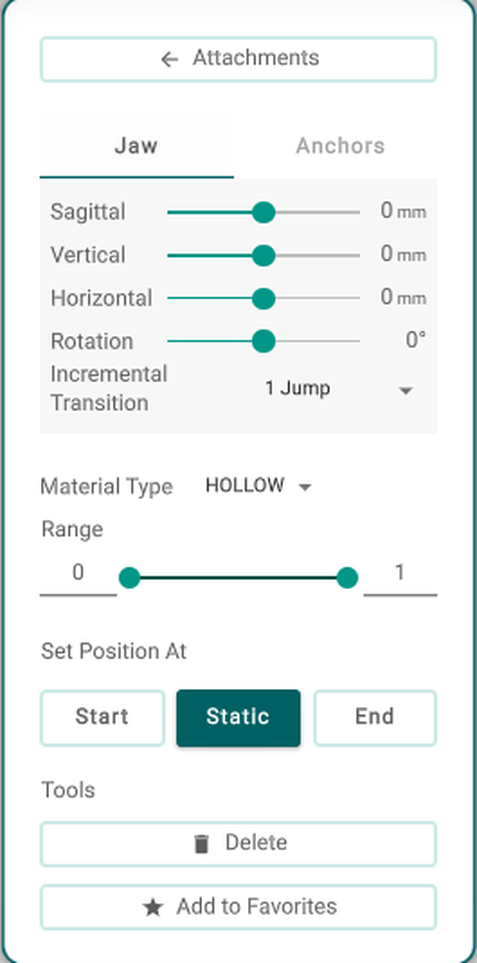
- Attachments (Back) — returns to the Attachments panel.
- Jaw tab — Sagittal / Vertical / Horizontal / Rotation — how far the block posts the jaw.
- Incremental Transition — splits the jaw advance across the steps (Continuous, or 1 to 4 Jumps).
- Anchors tab — Location / Offset / Height / Width / Length U / Length L / Inside — the anchor blocks themselves, plus an Auto Orient switch that orients them for you.
- Material Type — Hollow / Solid / Visual — how the block is produced.
- Range — the aligner range the block is present for.
- Set Position At — Start / Static / End — how the block sizes across the steps.
- Delete — removes the block (or the Delete key, unless you're typing in a field).
- Add to Favorites — saves the block so you can reuse it.
Good to know
- The Jaw and Anchors sliders grey out while the attachment is locked.
- The controls are greyed out without the treatment-edit permission.
- A twin block becomes part of the aligners and is carried into the printing phases with the other attachments.