Overcorrections
Overcorrection adds extra aligners at the end of treatment that push the teeth a little past their target, to make up for the small relapse that often happens afterwards. The Overcorrections step is where you turn that on and set how much.
Open it
In the 3D View, go to the Overcorrections step, after Attachments.
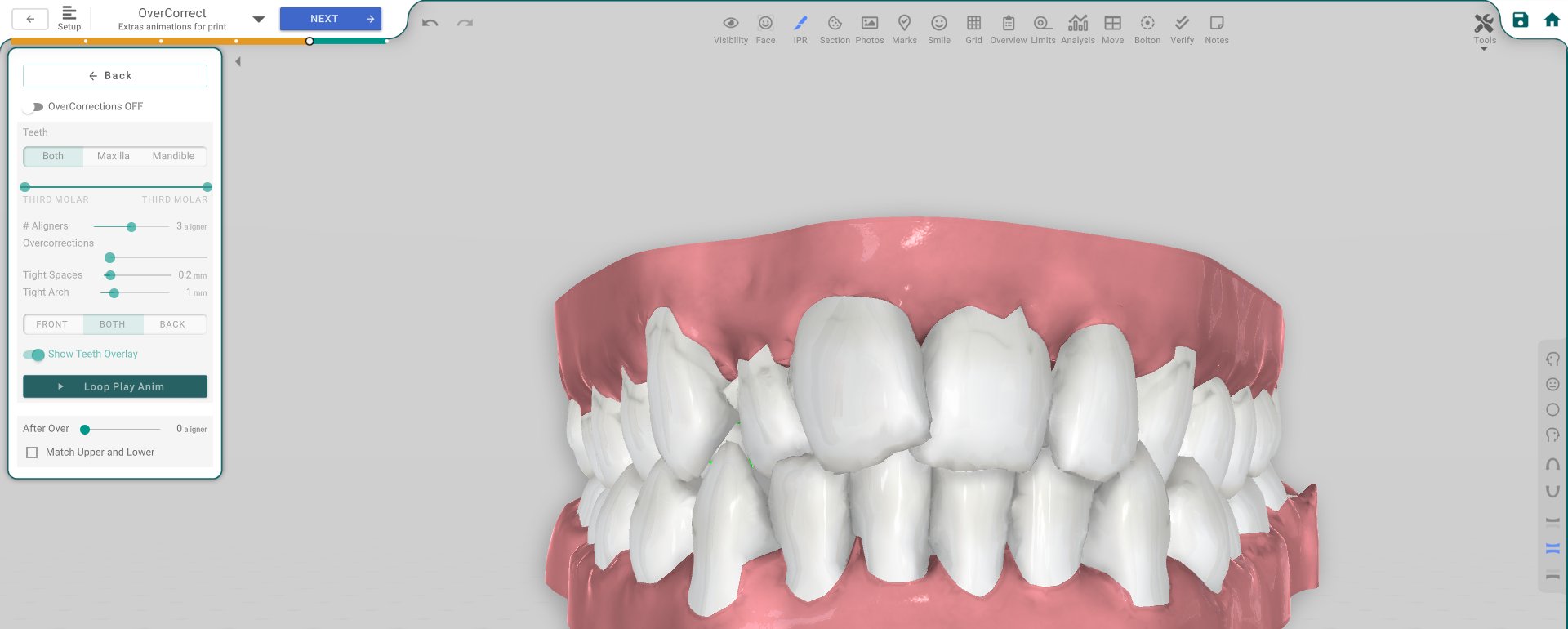
The panel, button by button
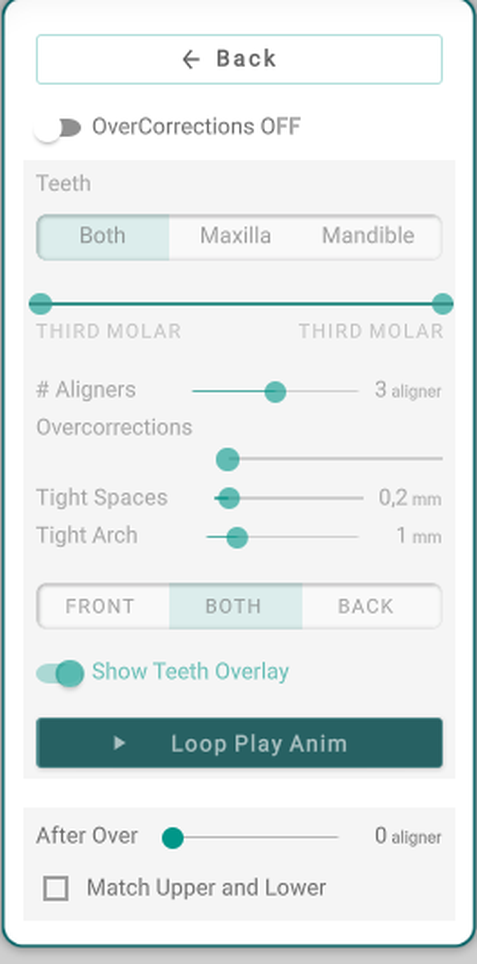
- OverCorrections ON/OFF — the enable toggle; the rest of the controls become active only once it's on.
- Teeth — Both / Maxilla / Mandible — which arch is overcorrected, with a slider to leave out the third molars.
- # Aligners — how many extra aligners to add at the end.
- Overcorrections — how much extra rotation to apply.
- Tight Spaces — closes the residual space a little tighter than planned.
- Tight Arch — pulls the arch in a little tighter than planned.
- Front / Both / Back — which side of the arch the overcorrection applies to.
- Show Teeth Overlay — compare the result against the un-overcorrected position.
- Loop Play Anim — play the overcorrection animation on repeat.
- After Over and Match Upper and Lower — set the aligner the overcorrection holds until, and keep both arches in step.
Good to know
- The extra aligners are added to the end of the sequence and carried into the printing phases.
- The controls are greyed out without the treatment-edit permission.